3  Morphological Processing, Edge Detection, and Connected Components

3.1 Introduction to Mathematical Morphology

Morphological image processing is a collection of techniques that extract and transform image features based on their geometric and topological properties. Unlike filtering operations that modify pixel intensities directly, morphological operations modify the structure and shape of objects in binary and grayscale images. These operations are rooted in mathematical morphology, which uses set theory as its foundational language.

When working with images, we represent objects as sets of pixels. In a binary image, foreground pixels (typically white or valued 1) represent objects of interest, and background pixels (typically black or valued 0) constitute the complement. The power of morphological operations lies in their ability to extract meaningful structural information—identifying boundaries, separating touching objects, removing noise, and filling gaps—while operating on simple local neighborhood rules.

3.1.1 Core Concept: The Structuring Element

All morphological operations pivot on the structuring element (SE), a small binary template that defines the neighborhood pattern considered during processing. Think of the structuring element as a shape stamp that we place on every pixel of the image. Depending on where this stamp fits relative to the foreground, we make decisions about whether to keep, add, or remove that pixel.

Common structuring element shapes include disks (circular approximations), squares, crosses, and diamonds. The choice of shape and size fundamentally determines which features are enhanced or suppressed.

3.2 Binary Morphological Operations

3.2.1 Erosion: Shrinking Foreground Regions

Animation of erosion with a cross-shaped structuring element

Intuitive Explanation:

Erosion shrinks white (foreground) regions. Imagine placing the structuring element on every part of the image. For a pixel to become (or remain) white in the eroded result, the entire structuring element must fit completely inside the white region when centered on that pixel. If any part of the structuring element overlaps black (background), that pixel becomes black.

Key Effects:

  • Shrinks foreground objects and removes small isolated foreground pixels entirely
  • Breaks narrow connections between objects

When to Use:

  • Removing small white speckles
  • Separating touching objects

3.2.2 Dilation: Expanding Foreground Regions

Animation of dilation with a cross-shaped structuring element

Intuitive Explanation:

Dilation expands white (foreground) regions. A pixel becomes white in the dilated result if any part of the structuring element overlaps foreground pixels when centered on that position. This has the effect of “growing” or “fattening” the foreground.

Key Effects:

  • Expands foreground objects and fills small holes inside them
  • Closes narrow gaps between objects

When to Use:

  • Filling holes in segmented objects
  • Connecting nearly-touching components

3.2.3 Opening: Erosion Followed by Dilation

Effect:

Opening removes small foreground objects and noise while attempting to preserve the size and shape of larger objects. The erosion step removes small components; the subsequent dilation restores much of the original size of remaining components.

Key Property: Opening is idempotent—applying it multiple times produces the same result as applying it once.

When to Use:

  • Removing small noise pixels without destroying main features
  • Cleaning segmentation masks before counting objects

3.2.4 Closing: Dilation Followed by Erosion

Effect:

Closing fills small holes inside foreground regions while attempting to preserve the overall size. The dilation step fills gaps and holes; the subsequent erosion attempts to restore the original boundary.

Key Property: Closing is also idempotent.

When to Use:

  • Filling gaps inside nuclei or cells
  • Bridging narrow gaps in incomplete contours

Quiz: Opening vs. Closing

Which operation would you use to remove small noise speckles from a binary segmentation mask without significantly changing the shape of large objects?


3.3 Practical Implementation: Morphological Operations on Test Image

Let us apply all four operations to a small test image: a dark cell on a bright background, with a bright one-pixel hole at row 4, column 4. Thresholding at 0.5 turns it into a binary mask in which the dark cell is the foreground.

3.3.1 Structuring Elements

The structuring element defines the neighbourhood each operation looks at. We use a disk, which is rotationally symmetric and common in medical image analysis. 1 marks a pixel the stamp includes:

3.3.2 Applying All Four Operations

scikit-image’s binary_erosion, binary_dilation, binary_opening and binary_closing work directly on a True/False mask:

Quiz: Erosion Effect

A binary image has a 1-pixel-wide bridge connecting two larger foreground regions. What happens when you apply erosion with a 3×3 disk structuring element?


3.4 Edge Detection with Sobel Filtering

3.4.1 Mathematical Foundation: Partial Derivatives and Gradients

Edge detection at its core is about identifying regions in an image where intensity changes rapidly. Mathematically, this is captured by computing derivatives with respect to spatial coordinates. For a continuous 2D function \(I(x, y)\) representing image intensity, the gradient is a vector composed of partial derivatives in the \(x\) and \(y\) directions:

\[\nabla I = \left( \frac{\partial I}{\partial x}, \frac{\partial I}{\partial y} \right)\]

The magnitude of the gradient indicates the strength of intensity change:

\[|\nabla I| = \sqrt{\left(\frac{\partial I}{\partial x}\right)^2 + \left(\frac{\partial I}{\partial y}\right)^2}\]

High gradient magnitudes occur at edges—regions where intensity transitions sharply from one level to another. In discrete digital images, we approximate these partial derivatives using finite differences computed with small convolution kernels.

Because derivatives amplify pixel-to-pixel noise, edge detectors work best on an image that has first been lightly smoothed with a Gaussian blur (see Gaussian Filtering in Chapter 2).

3.4.2 The Sobel Operator: Discrete Approximation

The Sobel operator, developed by Irwin Sobel in the 1960s for use in computer vision and image processing, provides an efficient method for computing approximate derivatives using small \(3 \times 3\) kernels. Sobel’s innovation was to weight the central row/column more heavily than the edges, reducing noise sensitivity while approximating derivatives.

The Sobel operator consists of two kernels, \(S_x\) and \(S_y\), designed to approximate the partial derivatives in the \(x\) and \(y\) directions respectively:

Sobel kernel for \(x\)-direction (\(S_x\), detecting vertical edges):

\[S_x = \begin{bmatrix} -1 & 0 & +1 \\ -2 & 0 & +2 \\ -1 & 0 & +1 \end{bmatrix}\]

Sobel kernel for \(y\)-direction (\(S_y\), detecting horizontal edges):

\[S_y = \begin{bmatrix} -1 & -2 & -1 \\ 0 & 0 & 0 \\ +1 & +2 & +1 \end{bmatrix}\]

Note that \(S_y\) is the transpose of \(S_x\). The center element is always zero, and the weights along the center row/column are doubled (±2 instead of ±1) to emphasize central differences.

3.4.3 How Sobel Works: Convolution Process

For each pixel \((i, j)\) in the image, the Sobel operator:

  1. Extracts the \(3 \times 3\) neighborhood centered at \((i, j)\)
  2. Applies \(S_x\) convolution to compute \(\frac{\partial I}{\partial x}\), yielding a gradient estimate in the \(x\)-direction
  3. Applies \(S_y\) convolution to compute \(\frac{\partial I}{\partial y}\), yielding a gradient estimate in the \(y\)-direction
  4. Computes the gradient magnitude: \(|\nabla I| = \sqrt{G_x^2 + G_y^2}\)
  5. Assigns this magnitude to the output at position \((i, j)\)

Pixels with high gradient magnitude correspond to edges; pixels with low gradient magnitude correspond to smooth, uniform regions.

3.4.4 Practical Application: Nucleus-Cytoplasm Boundary Detection

We now demonstrate Sobel edge detection on a synthetic image resembling a cell nucleus (darker region) surrounded by cytoplasm (lighter region). This mimics typical scenarios in biomedical image analysis where identifying cellular boundaries is critical.

Code
import numpy as np
import matplotlib.pyplot as plt
from scipy import signal

# Synthetic cell: dark nucleus (0.2) inside lighter cytoplasm (0.4), on a white background
nucleus_cytoplasm = np.array([
    [1.0, 1.0, 1.0, 1.0, 1.0, 1.0, 1.0, 1.0, 1.0, 1.0],
    [1.0, 1.0, 1.0, 1.0, 1.0, 1.0, 1.0, 1.0, 1.0, 1.0],
    [1.0, 1.0, 0.4, 0.4, 0.4, 0.4, 0.4, 0.4, 1.0, 1.0],
    [1.0, 1.0, 0.4, 0.2, 0.2, 0.2, 0.2, 0.4, 1.0, 1.0],
    [1.0, 1.0, 0.4, 0.2, 0.2, 0.2, 0.2, 0.4, 1.0, 1.0],
    [1.0, 1.0, 0.4, 0.2, 0.2, 0.2, 0.2, 0.4, 1.0, 1.0],
    [1.0, 1.0, 0.4, 0.2, 0.2, 0.2, 0.2, 0.4, 1.0, 1.0],
    [1.0, 1.0, 0.4, 0.4, 0.4, 0.4, 0.4, 0.4, 1.0, 1.0],
    [1.0, 1.0, 1.0, 1.0, 1.0, 1.0, 1.0, 1.0, 1.0, 1.0],
    [1.0, 1.0, 1.0, 1.0, 1.0, 1.0, 1.0, 1.0, 1.0, 1.0]
], dtype=np.float32)

S_x = np.array([
    [-1, 0, +1],
    [-2, 0, +2],
    [-1, 0, +1]
], dtype=np.float32)

S_y = np.array([
    [-1, -2, -1],
    [0, 0, 0],
    [+1, +2, +1]
], dtype=np.float32)

# correlate2d slides each kernel over the image without flipping it (see the note below)
G_x = signal.correlate2d(nucleus_cytoplasm, S_x, mode='same', boundary='fill', fillvalue=0.0)
G_y = signal.correlate2d(nucleus_cytoplasm, S_y, mode='same', boundary='fill', fillvalue=0.0)
G_magnitude = np.sqrt(G_x**2 + G_y**2)

fig, axes = plt.subplots(1, 4, figsize=(12, 3))
axes[0].imshow(nucleus_cytoplasm, cmap='gray', vmin=0, vmax=1)
axes[0].set_title("Original")
axes[1].imshow(G_x, cmap='RdBu_r')
axes[1].set_title("$G_x$ (vertical edges)")
axes[2].imshow(G_y, cmap='RdBu_r')
axes[2].set_title("$G_y$ (horizontal edges)")
axes[3].imshow(G_magnitude, cmap='hot')
axes[3].set_title(r"Magnitude $|\nabla I|$")
for ax in axes:
    ax.axis('off')
plt.tight_layout()
plt.show()
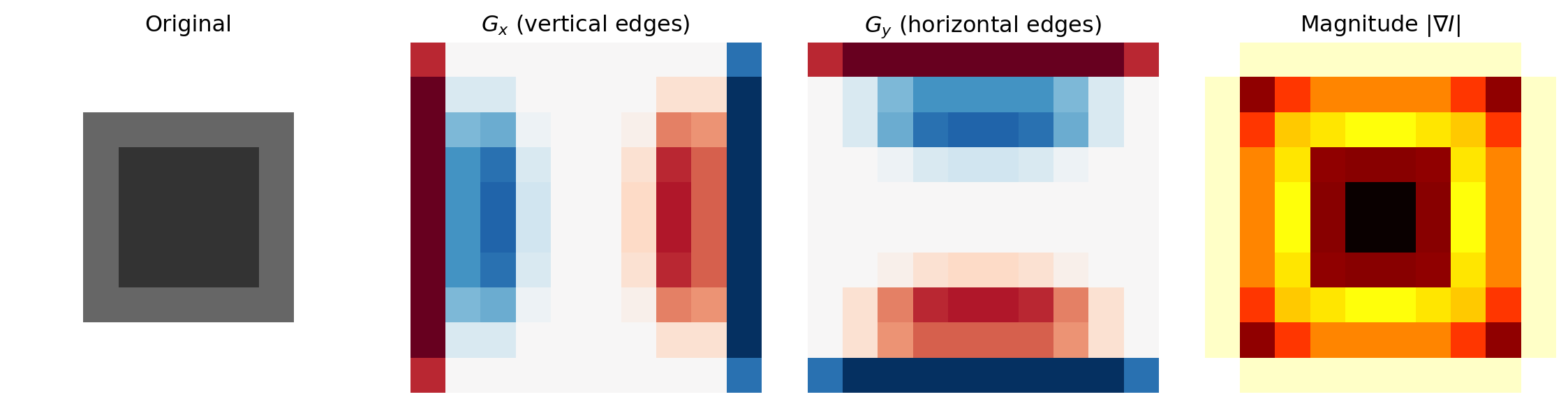
3.4.5 Understanding the Results

Gradient in x-direction (\(G_x\)): Highlights vertical edges where intensity changes horizontally (left-right). At the left and right boundaries of the nucleus, we observe strong positive and negative values.

Gradient in y-direction (\(G_y\)): Highlights horizontal edges where intensity changes vertically (top-bottom). At the top and bottom boundaries of the nucleus, we observe strong positive and negative values.

Gradient magnitude (\(|\nabla I|\)): The combined edge strength at each pixel. Peaks occur precisely at the boundaries between regions of different intensity—the nucleus-cytoplasm interface and the image border. This magnitude map directly shows edge locations.

3.4.6 A Note on Kernel Flipping

scipy.signal.correlate2d (used above) applies the kernel exactly as written, which is the standard Sobel convention. scipy.ndimage.convolve flips the kernel 180° first, which reverses the signs of \(G_x\) and \(G_y\) but leaves the magnitude unchanged, and the magnitude is what locates a boundary.

Quiz: Sobel Gradient

The Sobel operator computes separate gradient images \(G_x\) (horizontal kernel) and \(G_y\) (vertical kernel), then combines them into a magnitude map \(|\nabla I| = \sqrt{G_x^2 + G_y^2}\). What does a high gradient magnitude at a pixel indicate?


3.5 Edge Detection with Canny Algorithm

3.5.1 Sobel vs. Canny

Sobel gives a gradient magnitude: a grayscale map of edge strength, several pixels thick, with no decision about what counts as an edge. Canny (John Canny, 1986) turns that into a clean binary edge map in four steps:

  1. Gaussian smoothing to suppress noise
  2. Gradient computation, as in Sobel
  3. Non-maximum suppression, which thins each edge to a single pixel
  4. Hysteresis thresholding: pixels above a high threshold are edges, and pixels between the low and high thresholds are kept only if they connect to a strong edge
Sobel Canny
Output Gradient magnitude (grayscale) Binary edge map
Edge thickness Several pixels Single pixel
Noise handling None built in Gaussian smoothing built in
Thresholds You pick one afterwards Two, with edge linking (hysteresis)

3.5.2 Real-World Application: Urothelial Cell Imaging

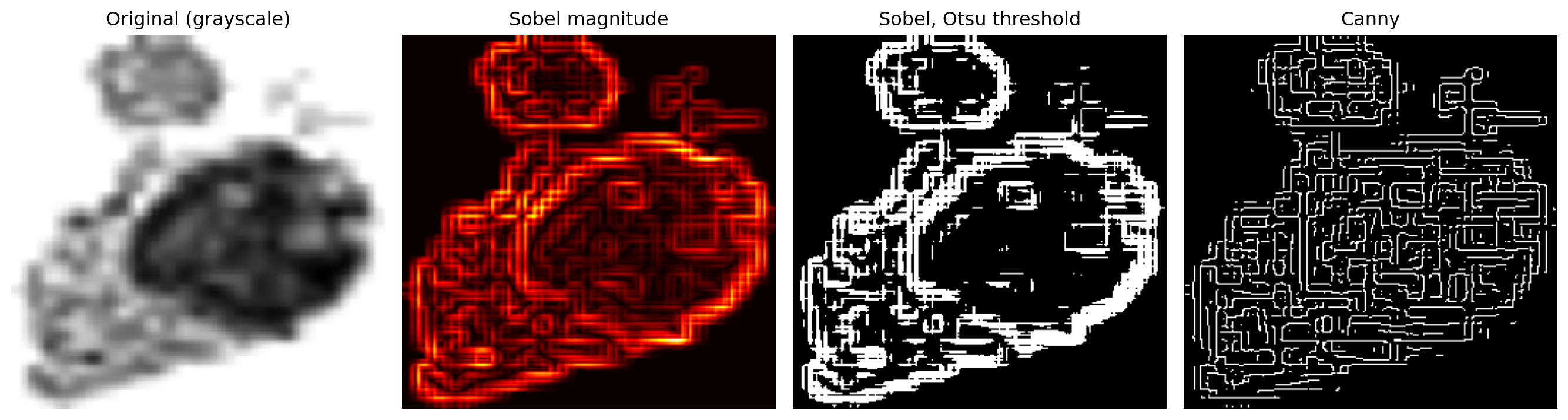
The Cedars Sinai dataset contains microscopy images of urothelial (bladder) cells. These images present significant challenges: - High noise: From optical systems and staining variations - Texture: Cell membranes and cytoplasm have complex structures - Varying contrast: Nuclear regions, cytoplasm, and background have overlapping intensities - Cell overlap: Multiple cells in frame with touching boundaries

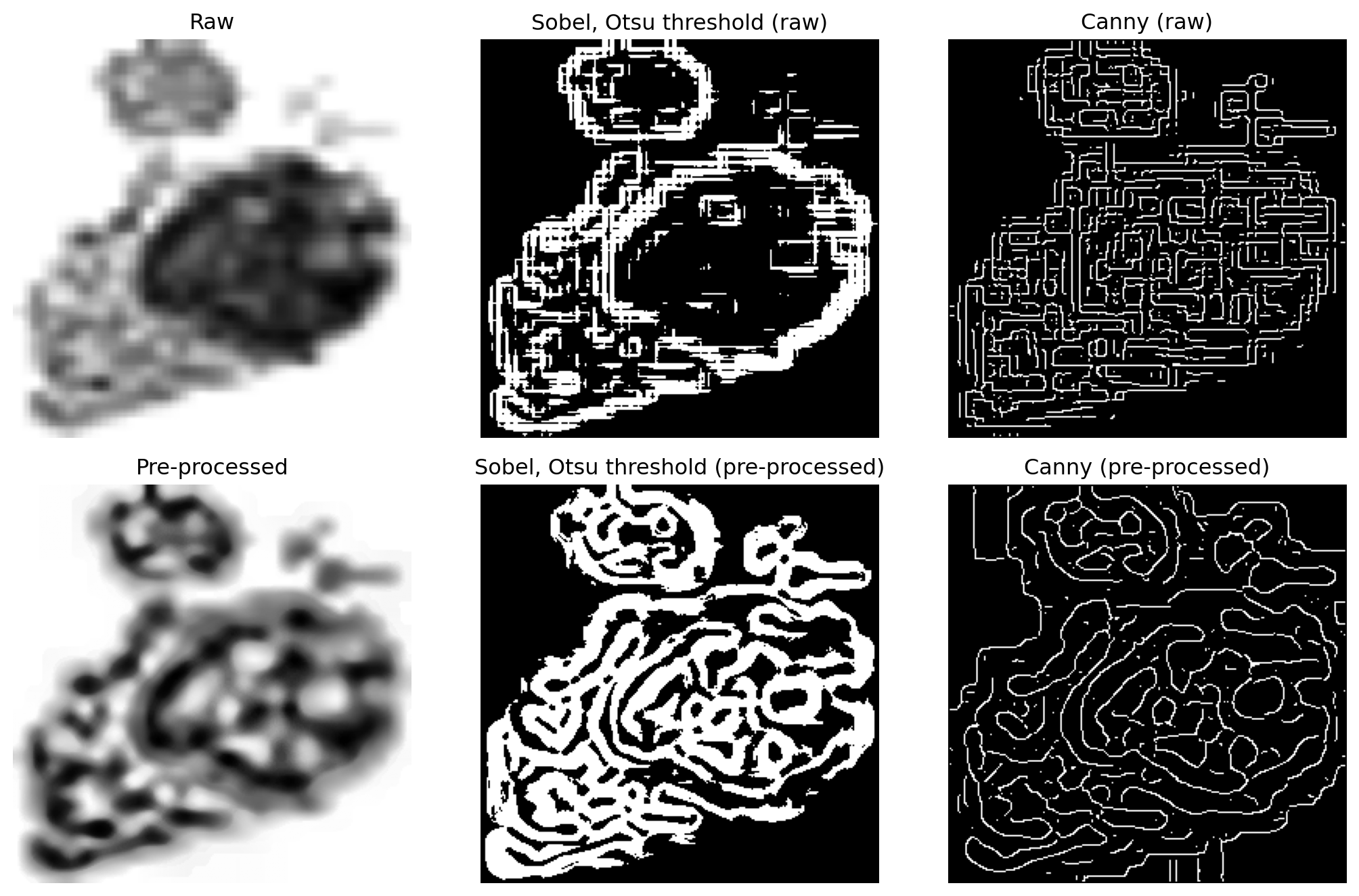
We’ll demonstrate both edge detection methods on raw and pre-processed images to show the dramatic impact of preprocessing.

3.5.3 Stage 1: Edge Detection Without Pre-processing

Code
import pandas as pd
import numpy as np
import matplotlib.pyplot as plt
from scipy import ndimage
from skimage import filters, feature, exposure

# Note: If running in Jupyter/Colab, uncomment and run:
# !git clone https://github.com/emilsar/Cedars.git
# %cd Cedars/Project3
# !python 1_prepdata.py

# Load the preprocessed data — tries Windows path first, falls back to local Cedars clone
try:
    urothelial_cells = pd.read_pickle("C:/Cedars/Project3/urothelial_cell_toy_data.pkl")
except FileNotFoundError:
    urothelial_cells = pd.read_pickle("Cedars/Project3/urothelial_cell_toy_data.pkl")

# (batch, channels, height, width) floats in [0, 1] -> (batch, height, width, channels) uint8
images = np.transpose(urothelial_cells["X"].numpy() * 255, (0, 2, 3, 1)).astype(np.uint8)
labels = urothelial_cells["y"]

img_number = 2  # try 0, 1, 3, ...
gray_image = np.mean(images[img_number], axis=2).astype(np.uint8)

edges_sobel_raw = filters.sobel(gray_image)
edges_sobel_thresh = edges_sobel_raw > filters.threshold_otsu(edges_sobel_raw)
edges_canny_raw = feature.canny(gray_image, sigma=1.0, low_threshold=0.1, high_threshold=0.3)

fig, axes = plt.subplots(1, 4, figsize=(14, 4))
axes[0].imshow(gray_image, cmap='gray')
axes[0].set_title("Original (grayscale)")
axes[1].imshow(edges_sobel_raw, cmap='hot')
axes[1].set_title("Sobel magnitude")
axes[2].imshow(edges_sobel_thresh, cmap='gray')
axes[2].set_title("Sobel, Otsu threshold")
axes[3].imshow(edges_canny_raw, cmap='gray')
axes[3].set_title("Canny")
for ax in axes:
    ax.axis('off')
plt.tight_layout()
plt.show()

On the raw image both detectors respond everywhere: to texture inside the cell, and to the blocky staircase of the image’s coarse pixel grid, as well as to the real boundaries. The true outlines are hard to pick out.

3.5.4 Stage 2: Edge Detection with Pre-processing

The pre-processing pipeline has three steps. A Gaussian blur (σ=2) and a median filter (size 5), both from Chapter 2, remove noise. Then CLAHE (contrast-limited adaptive histogram equalisation, exposure.equalize_adapthist) boosts contrast separately in each small region of the image, so faint boundaries stand out.

Code
blurred = ndimage.gaussian_filter(gray_image, sigma=2.0)
median_denoised = ndimage.median_filter(blurred, size=5)
enhanced = exposure.equalize_adapthist(median_denoised, clip_limit=0.03)
preprocessed_image = (enhanced * 255).astype(np.uint8)

edges_sobel_processed = filters.sobel(preprocessed_image)
edges_sobel_thresh_processed = edges_sobel_processed > filters.threshold_otsu(edges_sobel_processed)
edges_canny_processed = feature.canny(preprocessed_image, sigma=1.5, low_threshold=0.1, high_threshold=0.25)

rows = [("Raw", gray_image, edges_sobel_thresh, edges_canny_raw),
        ("Pre-processed", preprocessed_image, edges_sobel_thresh_processed, edges_canny_processed)]

fig, axes = plt.subplots(2, 3, figsize=(11, 7))
for r, (name, img, sobel_edges, canny_edges) in enumerate(rows):
    axes[r, 0].imshow(img, cmap='gray')
    axes[r, 0].set_title(name)
    axes[r, 1].imshow(sobel_edges, cmap='gray')
    axes[r, 1].set_title(f"Sobel, Otsu threshold ({name.lower()})")
    axes[r, 2].imshow(canny_edges, cmap='gray')
    axes[r, 2].set_title(f"Canny ({name.lower()})")
for ax in axes.flat:
    ax.axis('off')
plt.tight_layout()
plt.show()
What to look for:

  • Pre-processing removes the pixel-grid artifacts. After blurring, the edges become smooth, connected curves instead of short horizontal and vertical fragments.
  • But contrast enhancement cuts both ways. CLAHE also strengthens the texture inside the cell, so many of the new edges trace that texture rather than the cell or nucleus outline. Edge detection on its own does not segment the nucleus; it is one ingredient, alongside thresholding and morphology.
  • Sobel vs. Canny: Sobel still needs a threshold and its edges stay several pixels thick; Canny returns thin, single-pixel edges directly.

Quiz: Canny Edge Detection

What step in the Canny algorithm produces single-pixel-wide edges (a feature absent from basic Sobel output)?


3.6 Connected Component Analysis

3.6.1 What is Connected Component Analysis?

Connected component analysis (CCA) is a fundamental image processing technique that identifies and labels distinct objects within an image. In our context, we use it to count how many separate regions of nucleus pixels exist in the ground truth annotations.

Why do we need this? Microscopy images sometimes contain: - No nucleus: Poor imaging or incomplete annotations - Multiple nuclei: Overlapping cells or annotation errors - Fragmented nuclei: A single nucleus separated into multiple disconnected regions

By detecting these cases automatically, we can exclude them from training, ensuring our models learn only from images where a single, intact nucleus is clearly labeled.

CCA also serves a second, more targeted purpose: cleaning up spurious blobs in a predicted mask.

Three urothelial cells: threshold prediction (left), after morphological processing (middle), ground truth (right).

Left: the raw threshold prediction — pixels dark enough to fall below the nucleus threshold appear white, including spurious blobs (“blemishes”) caused by cell debris or staining artefacts. Middle: the same prediction after morphological processing; the main nucleus region is cleaner, but a blemish of non-trivial size remains. Right: the ground truth mask showing where the nucleus actually is.

CCA gives us a more targeted fix: after thresholding, label every connected blob of nucleus pixels and measure its size. Any blob too small to be a real nucleus is almost certainly debris or a staining artefact — remove it. Unlike morphological opening, which erodes all regions uniformly, this size filter leaves the true nucleus intact while precisely excising the spurious blobs.

3.6.2 Connected Components and Connectivity

A connected component is a maximal set of pixels that: 1. All have the same label (e.g., all labeled as “nucleus” with value 2) 2. Are connected via a path of adjacent pixels with the same label

Connectivity definitions: - 4-connectivity: Pixels are adjacent if they share an edge (up, down, left, right) - 8-connectivity: Pixels are adjacent if they share an edge or corner (includes diagonals)

For biological structures like cell nuclei, 8-connectivity is preferred because it better captures the continuity of cellular structures. A nucleus touching at corners is still a single nucleus, not two separate ones.

3.6.3 Algorithm Overview and Examples

The connected component labeling algorithm:

Initialize: component_id = 0
For each pixel in the image (row by row, left to right):
    If pixel has target label and is not yet labeled:
        If pixel has labeled neighbors:
            Assign pixel to neighbor's component
            (Merge components if neighbors belong to different ones)
        Else:
            Create new component (increment component_id)
Return: labeled_image (each pixel marked with its component ID)
        num_components (total count)

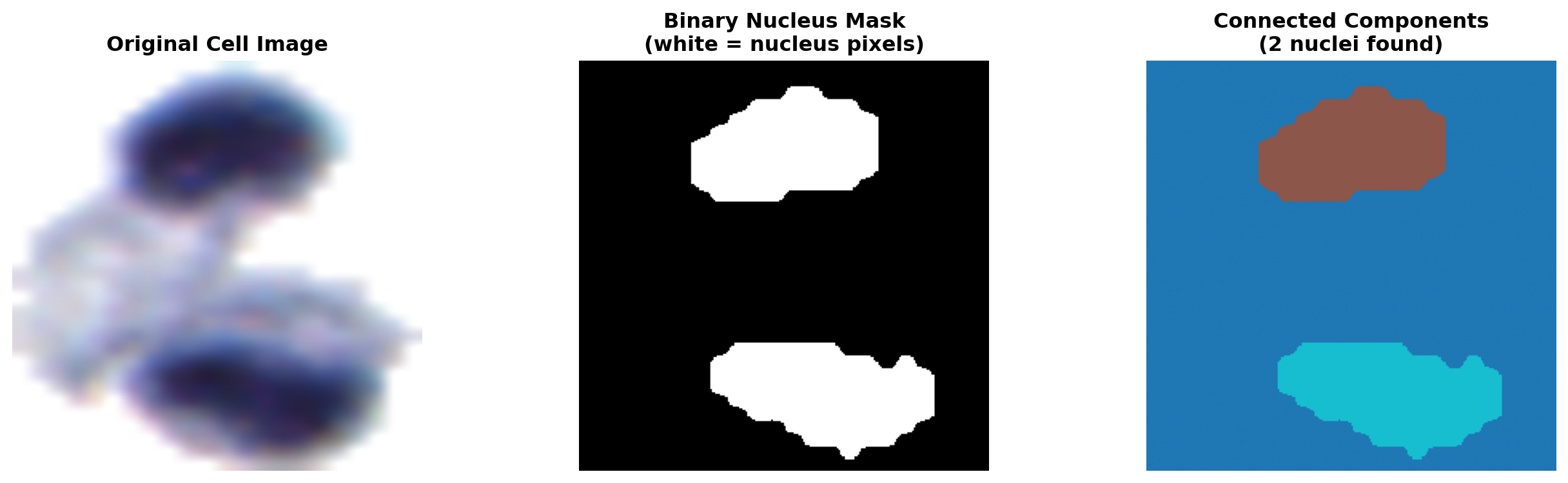
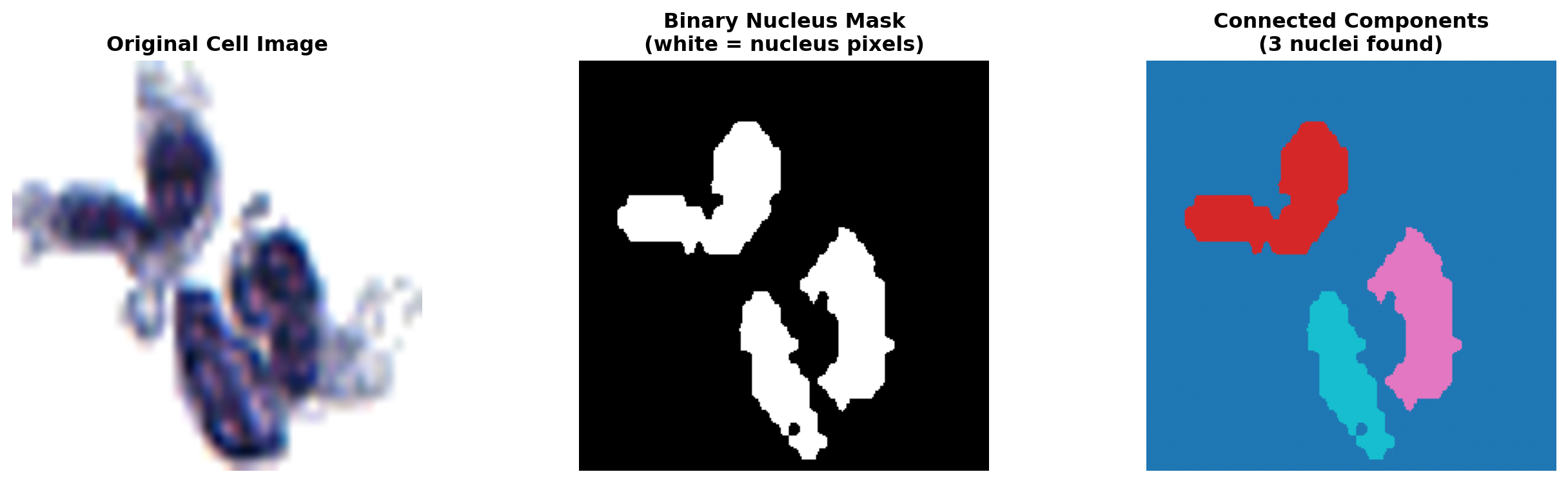
Let’s apply it to real images from our dataset. The nucleus mask is extracted from the ground-truth label array (pixels with value 2 = nucleus), and skimage.measure.label() assigns each disconnected nucleus region its own integer ID.

skimage.measure.label() is the direct implementation of the connected component labeling algorithm described above. When you call it, it performs exactly that pseudocode scan — iterating pixel by pixel, grouping touching nucleus pixels into the same component, and returning an integer map where every pixel belonging to the first nucleus gets ID 1, every pixel belonging to the second gets ID 2, and so on. The connectivity=2 argument selects 8-connectivity (diagonals count as neighbors), and return_num=True also returns the total component count as a second value. So component_map, num_components = label(nucleus_mask, connectivity=2, return_num=True) is the single line where the entire algorithm runs.

Code
# Note: If running in Jupyter/Colab, uncomment the following and run in a previous cell.  Sample images are loaded into `images[]` and `labels[]` for the examples below.:

#!git clone https://github.com/emilsar/VocEd.git
#%cd VocEd

#import glob
#import numpy as np
#import matplotlib.pyplot as plt
#from skimage.measure import label

#N = len(glob.glob('imagedata/X/*.npy'))
#images = np.stack([np.load(f'imagedata/X/{i}.npy') for i in range(N)])
#labels = np.stack([np.load(f'imagedata/y/{i}.npy') for i in range(N)])

#has_nucleus = (labels == 2).sum(axis=(1, 2)) > 0
#images, labels = images[has_nucleus], labels[has_nucleus]


import numpy as np
import matplotlib.pyplot as plt
from skimage.measure import label

# Note: images[] and labels[] are loaded earlier in this chapter
def show_cc_example(img_index, images, labels):
    img = images[img_index]
    lbl_arr = labels[img_index].numpy() if hasattr(labels[img_index], 'numpy') else labels[img_index]
    nucleus_mask = (lbl_arr == 2).astype(int)
    # Core connected component labeling step — runs the full algorithm described above
    component_map, num_components = label(nucleus_mask, connectivity=2, return_num=True)

    fig, axes = plt.subplots(1, 3, figsize=(14, 4))
    axes[0].imshow(img)
    axes[0].set_title('Original Cell Image', fontweight='bold')
    axes[0].axis('off')

    axes[1].imshow(nucleus_mask, cmap='gray')
    axes[1].set_title('Binary Nucleus Mask\n(white = nucleus pixels)', fontweight='bold')
    axes[1].axis('off')

    axes[2].imshow(component_map, cmap='tab10')
    axes[2].set_title(f'Connected Components\n({num_components} nuclei found)', fontweight='bold')
    axes[2].axis('off')

    plt.tight_layout()
    plt.show()
    print(f"Components found: {num_components}")
    for comp_id in range(1, num_components + 1):
        size = np.sum(component_map == comp_id)
        print(f"  Component {comp_id}: {size} pixels")

# Example 1: two nuclei
show_cc_example(31, images, labels)

# Example 2: three nuclei
show_cc_example(3, images, labels)

Components found: 2
  Component 1: 6336 pixels
  Component 2: 6957 pixels

Components found: 3
  Component 1: 4222 pixels
  Component 2: 3601 pixels
  Component 3: 2727 pixels

Try it yourself: the widget below lets you paint foreground pixels on a 10×10 grid by clicking. Every time you change the grid, the connected component algorithm runs instantly and the results update — try connecting two blobs to watch two components merge into one.

3.6.4 Counting Nuclei Across the Dataset

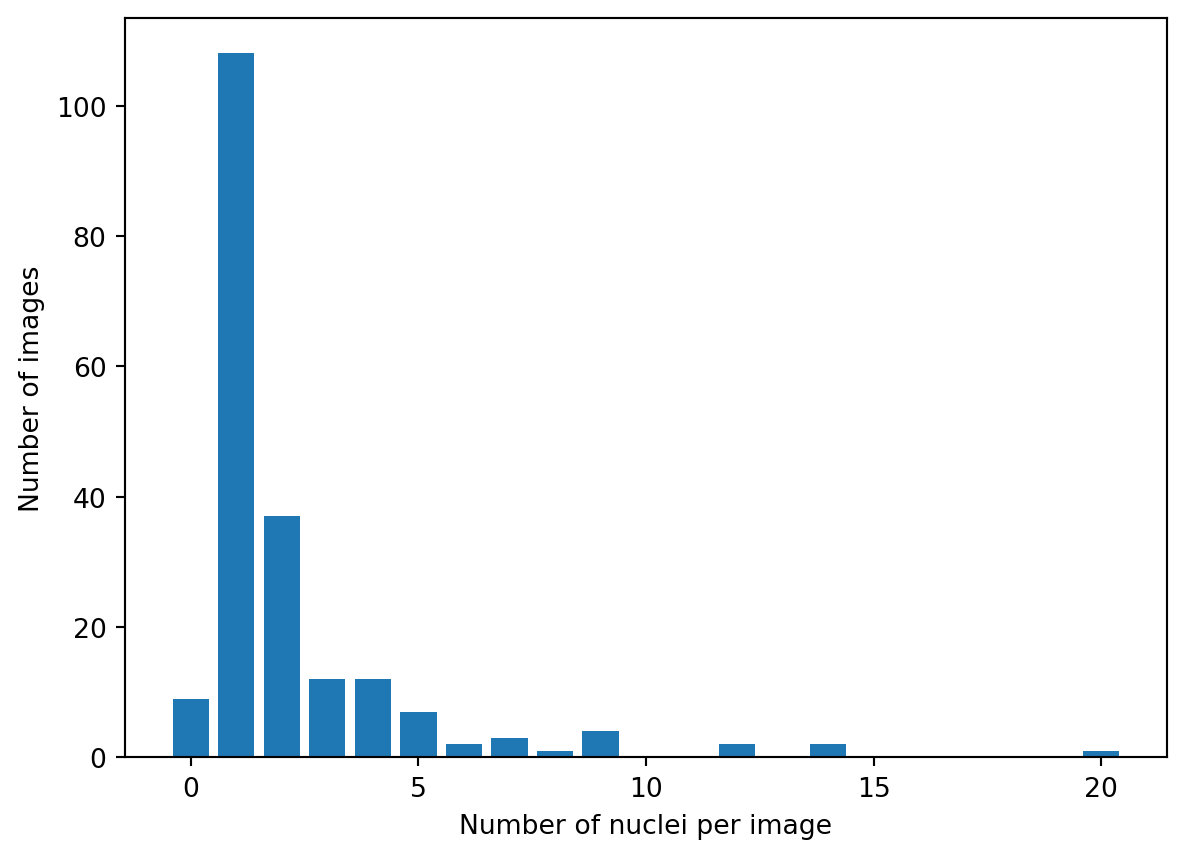
Run the same label() call on every mask and you learn how many images contain zero, one, or several nuclei. Images without exactly one nucleus are the ones to set aside before training.

Code
import numpy as np
import matplotlib.pyplot as plt
from skimage.measure import label

# labels[] was loaded in the Canny section above
nucleus_counts = []
for lbl in np.asarray(labels):
    _, n = label(lbl == 2, connectivity=2, return_num=True)
    nucleus_counts.append(n)

counts = np.bincount(nucleus_counts)

plt.bar(range(len(counts)), counts)
plt.xlabel('Number of nuclei per image')
plt.ylabel('Number of images')
plt.show()

for n, c in enumerate(counts):
    if c > 0:
        print(f"{n} nuclei: {c} images")
print(f"Images with exactly one nucleus: {counts[1]} of {len(nucleus_counts)}")

0 nuclei: 9 images
1 nuclei: 108 images
2 nuclei: 37 images
3 nuclei: 12 images
4 nuclei: 12 images
5 nuclei: 7 images
6 nuclei: 2 images
7 nuclei: 3 images
8 nuclei: 1 images
9 nuclei: 4 images
12 nuclei: 2 images
14 nuclei: 2 images
20 nuclei: 1 images
Images with exactly one nucleus: 108 of 200

Quiz: Connected Components

In 8-connectivity, which pixels count as neighbors of the center pixel?


4 Exercises

4.1 Exercise 3.1: Morphological Operations on a Binary Image

Objective: Explore how erosion, dilation, opening, and closing transform the shape and structure of a binary image.

4.1.1 Problem Setup

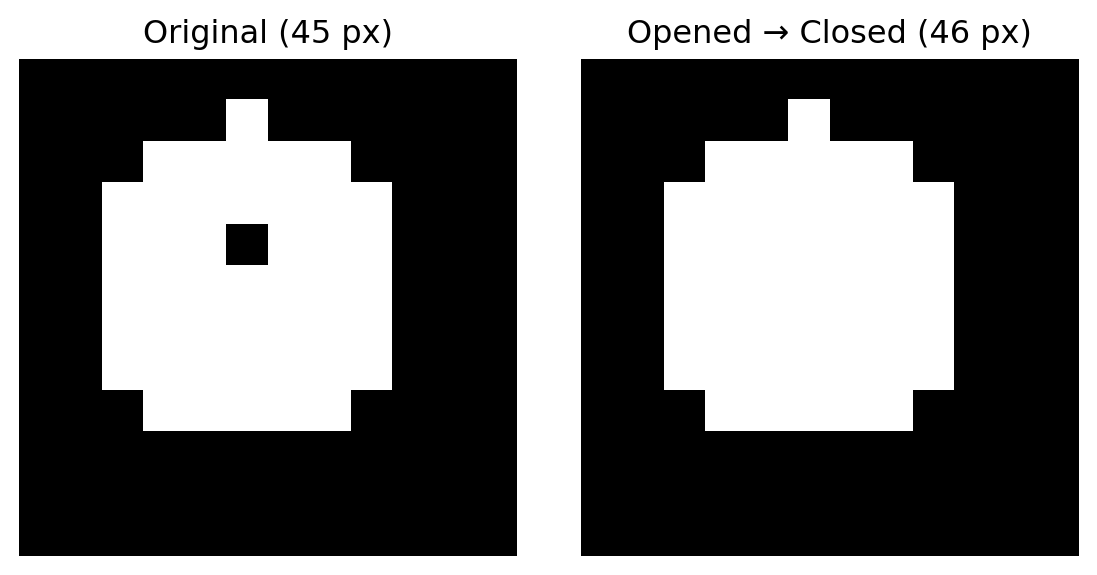
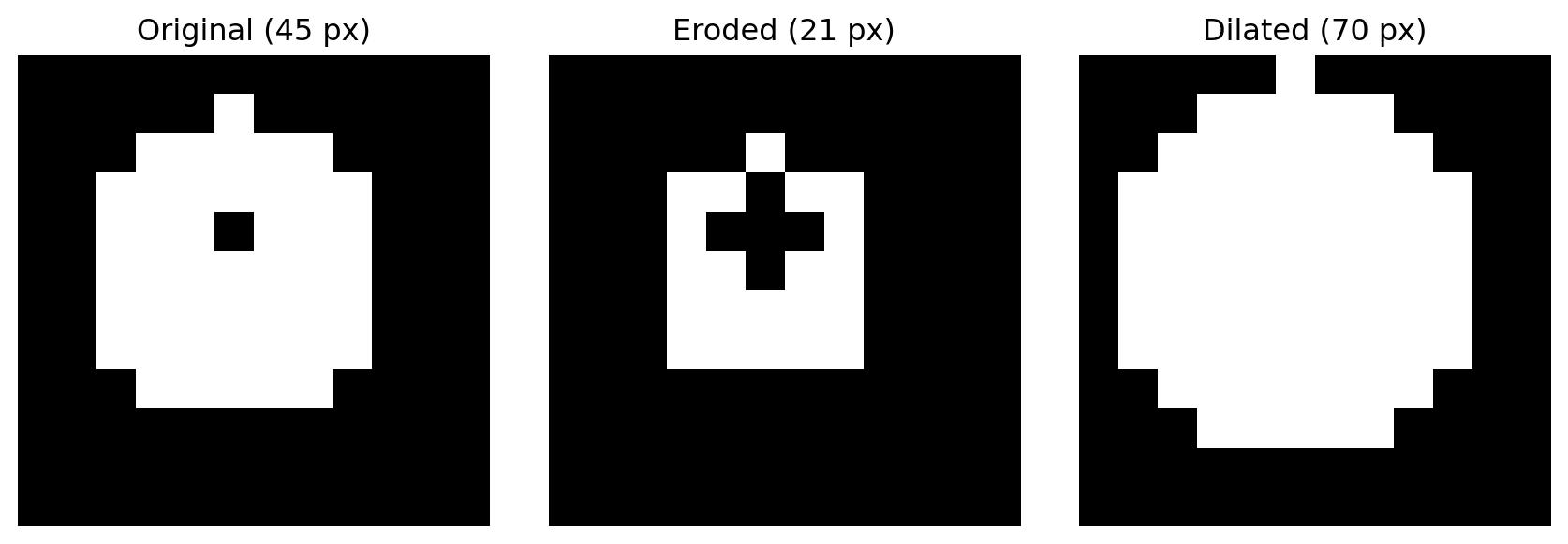
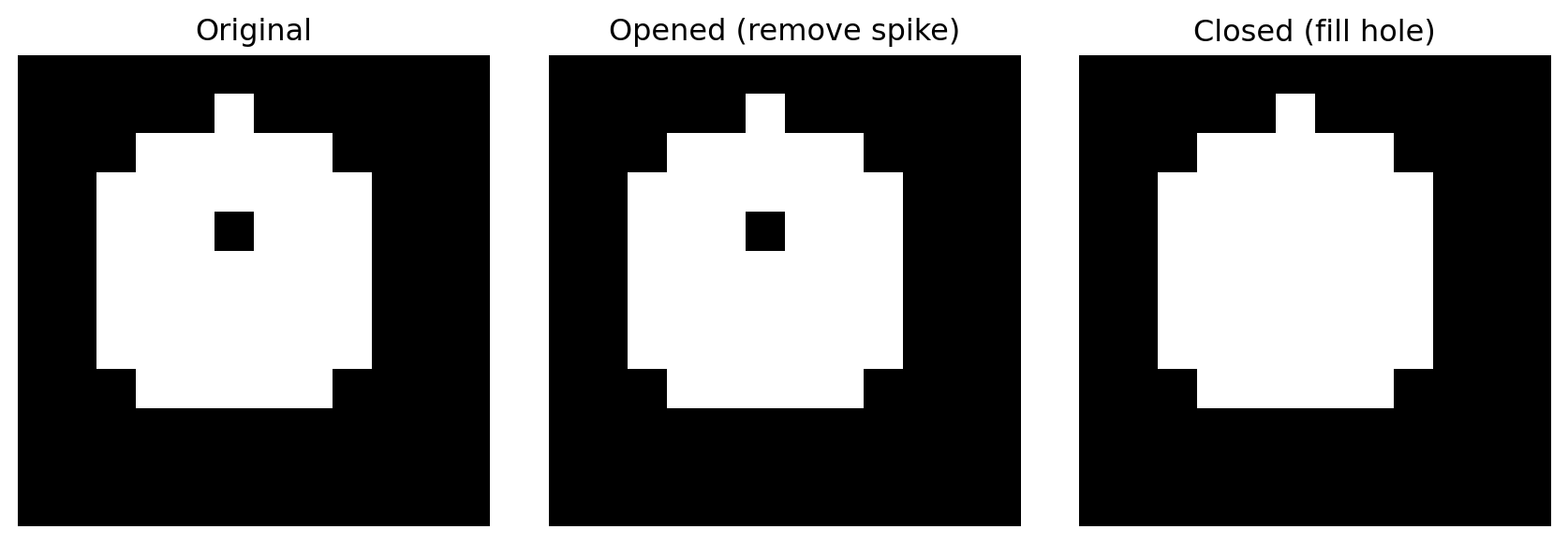
You have a 12×12 binary image containing a circle-like shape with two intentional imperfections: a 1-pixel noise spike sticking out from the top, and a small hole inside the body.

Code
import numpy as np
import matplotlib.pyplot as plt
from skimage import morphology

image = np.array([
    [0,0,0,0,0,0,0,0,0,0,0,0],
    [0,0,0,0,0,1,0,0,0,0,0,0],
    [0,0,0,1,1,1,1,1,0,0,0,0],
    [0,0,1,1,1,1,1,1,1,0,0,0],
    [0,0,1,1,1,0,1,1,1,0,0,0],
    [0,0,1,1,1,1,1,1,1,0,0,0],
    [0,0,1,1,1,1,1,1,1,0,0,0],
    [0,0,1,1,1,1,1,1,1,0,0,0],
    [0,0,0,1,1,1,1,1,0,0,0,0],
    [0,0,0,0,0,0,0,0,0,0,0,0],
    [0,0,0,0,0,0,0,0,0,0,0,0],
    [0,0,0,0,0,0,0,0,0,0,0,0],
], dtype=np.uint8)

print(f"Image shape: {image.shape}")
print(f"Foreground pixels: {image.sum()}")
Image shape: (12, 12)
Foreground pixels: 45

The noise spike is at row 1, col 5. The hole is at row 4, col 5 (value 0 inside the body).

4.1.2 Tasks

Part A: Erosion and Dilation

Apply erosion and dilation each with a 3×3 disk structuring element:

se = morphology.disk(1)   # disk of radius 1 → 3×3 footprint
eroded  = morphology.binary_erosion(image, se).astype(np.uint8)
dilated = morphology.binary_dilation(image, se).astype(np.uint8)

Display the original, eroded, and dilated images side-by-side with imshow(cmap='gray').

  • What happened to the noise spike after erosion?
  • What happened to the hole after dilation?
  • How did the overall size of the body change in each case?

Part B: Opening and Closing

Apply opening (removes spike) and closing (fills hole):

opened = morphology.binary_opening(image, se).astype(np.uint8)
closed = morphology.binary_closing(image, se).astype(np.uint8)

Display original, opened, and closed side-by-side.

  • Does opening remove the noise spike? Does it also remove the hole?
  • Does closing fill the hole? Does it also remove the spike?
  • Which operation best produces a clean, solid disk?

Part C: Combine Opening then Closing

Apply opening first (remove noise), then closing (fill hole):

clean = morphology.binary_closing(
    morphology.binary_opening(image, se), se
).astype(np.uint8)

Display the original and the cleaned result side-by-side.

  • How does this combined approach compare to either operation alone?

📌 Solution: Exercise 3.1

Solution 3.1: Morphological Operations on a Binary Image

Part A: Erosion and Dilation

Code
se = morphology.disk(1)
eroded  = morphology.binary_erosion(image, se).astype(np.uint8)
dilated = morphology.binary_dilation(image, se).astype(np.uint8)

fig, axes = plt.subplots(1, 3, figsize=(9, 3))
axes[0].imshow(image,   cmap='gray', vmin=0, vmax=1)
axes[0].set_title(f"Original ({image.sum()} px)")
axes[0].axis('off')
axes[1].imshow(eroded,  cmap='gray', vmin=0, vmax=1)
axes[1].set_title(f"Eroded ({eroded.sum()} px)")
axes[1].axis('off')
axes[2].imshow(dilated, cmap='gray', vmin=0, vmax=1)
axes[2].set_title(f"Dilated ({dilated.sum()} px)")
axes[2].axis('off')
plt.tight_layout()
plt.show()
/tmp/ipykernel_16067/3951772084.py:2: FutureWarning: `binary_erosion` is deprecated since version 0.26 and will be removed in version 0.28. Use `skimage.morphology.erosion` instead. Note the pixel shift by 1 for even-sized footprints (see docstring notes).
  eroded  = morphology.binary_erosion(image, se).astype(np.uint8)
/tmp/ipykernel_16067/3951772084.py:3: FutureWarning: `binary_dilation` is deprecated since version 0.26 and will be removed in version 0.28. Use `skimage.morphology.dilation` instead. Note the lack of mirroring for non-symmetric footprints (see docstring notes).
  dilated = morphology.binary_dilation(image, se).astype(np.uint8)

Answers:

  • Noise spike: Removed by erosion — the single pixel at row 1 cannot contain the full 3×3 disk, so it erodes away.
  • Hole: Filled by dilation — the background pixel at row 4 is surrounded by foreground neighbors, so dilation turns it white.
  • Body size: Erosion shrinks the boundary (fewer pixels); dilation expands it (more pixels).

Part B: Opening and Closing

Code
opened = morphology.binary_opening(image, se).astype(np.uint8)
closed = morphology.binary_closing(image, se).astype(np.uint8)

fig, axes = plt.subplots(1, 3, figsize=(9, 3))
axes[0].imshow(image,  cmap='gray', vmin=0, vmax=1)
axes[0].set_title("Original")
axes[0].axis('off')
axes[1].imshow(opened, cmap='gray', vmin=0, vmax=1)
axes[1].set_title("Opened (remove spike)")
axes[1].axis('off')
axes[2].imshow(closed, cmap='gray', vmin=0, vmax=1)
axes[2].set_title("Closed (fill hole)")
axes[2].axis('off')
plt.tight_layout()
plt.show()
/tmp/ipykernel_16067/786048422.py:1: FutureWarning: `binary_opening` is deprecated since version 0.26 and will be removed in version 0.28. Use `skimage.morphology.opening` instead.
  opened = morphology.binary_opening(image, se).astype(np.uint8)
/tmp/ipykernel_16067/786048422.py:2: FutureWarning: `binary_closing` is deprecated since version 0.26 and will be removed in version 0.28. Use `skimage.morphology.closing` instead.
  closed = morphology.binary_closing(image, se).astype(np.uint8)

Answers:

  • Opening removes the noise spike but leaves the hole (erosion first removes the spike, dilation restores the body but not the spike).
  • Closing fills the hole but leaves the spike (dilation first covers the hole, erosion restores the boundary but not the spike).
  • Neither alone produces a perfectly clean disk.

Part C: Opening then Closing

Code
clean = morphology.binary_closing(
    morphology.binary_opening(image, se), se
).astype(np.uint8)

fig, axes = plt.subplots(1, 2, figsize=(6, 3))
axes[0].imshow(image, cmap='gray', vmin=0, vmax=1)
axes[0].set_title(f"Original ({image.sum()} px)")
axes[0].axis('off')
axes[1].imshow(clean, cmap='gray', vmin=0, vmax=1)
axes[1].set_title(f"Opened → Closed ({clean.sum()} px)")
axes[1].axis('off')
plt.tight_layout()
plt.show()
/tmp/ipykernel_16067/3965846042.py:2: FutureWarning: `binary_opening` is deprecated since version 0.26 and will be removed in version 0.28. Use `skimage.morphology.opening` instead.
  morphology.binary_opening(image, se), se
/tmp/ipykernel_16067/3965846042.py:1: FutureWarning: `binary_closing` is deprecated since version 0.26 and will be removed in version 0.28. Use `skimage.morphology.closing` instead.
  clean = morphology.binary_closing(

Answers:

  • The combined result removes the spike and fills the hole, producing a clean solid shape close to the original body.
  • This pipeline — open first to remove noise, close next to fill gaps — is the standard approach in binary image pre-processing for medical segmentation.

4.2 Summary

Morphological operations, edge detection, and connected component analysis are complementary tools for turning a rough segmentation into a clean one.

Morphological operations (erosion, dilation, opening, closing) change the shape of foreground regions using a structuring element. Opening removes small specks; closing fills small holes.

Edge detection finds rapid intensity changes. Sobel produces a gradient-magnitude map from two \(3 \times 3\) kernels; Canny builds on it with smoothing, edge thinning, and two-threshold hysteresis to produce single-pixel binary edges. Both work far better after the denoising steps of Chapter 2.

Connected component analysis labels each separate blob in a mask. Counting nucleus components flags images with zero or several nuclei, and measuring component sizes lets us remove small debris blobs, the targeted cleanup used in Chapter 4.

Sign in to save progress
My Progress

0 / 0

📚 Gradebook

Loading…

✏️ Speed Grader

Sign in to save progress