2  Image Representation, Thresholding, and Noise

2.1 Displaying Images with Matplotlib

Before we can process an image we need to look at it reliably. This section covers the matplotlib habits used throughout the book: putting several images side by side, matching the display range to the data type, handling color channels, and overlaying a segmentation mask.

2.1.1 Creating and Inspecting Test Images

Let’s start with a simple artificial image with clear structure. We will reuse it throughout the chapter.

The test image is made of concentric squares whose values decrease from the edge (white, 1.0) toward the center (black, 0.0).

Want to see how pixel values map to brightness? Click any cell in the grid below, type a new value between 0.0 and 1.0, and press Enter to see the color update live:

2.1.2 Understanding matplotlib’s Display Functions

In matplotlib, every visualization lives inside a figure—think of it as a blank canvas. The figure holds one or more axes objects, where each axis is an individual panel you can draw on. When working with images in a multi-panel layout, the standard pattern is to create both at once with plt.subplots():

fig, axes = plt.subplots(1, 2, figsize=(10, 4))

This creates a figure with a 1×2 grid of panels. figsize=(10, 4) sets the canvas width and height in inches. The function returns two things: fig (the canvas itself) and axes (an array of panel objects). With a single row, you access each panel as axes[0], axes[1], and so on. With a 2D grid, you use two indices: axes[0, 1] means row 0, column 1.

Each axis exposes a small set of methods you’ll call constantly when displaying images:

axes[0].imshow(image, cmap='gray')   # display the array as an image
axes[0].set_title("My Image")         # label the panel
axes[0].axis('off')                   # hide tick marks and borders

Here’s a complete working example using our test image:

plt.tight_layout() adjusts spacing between panels so that titles don’t overlap. Notice we call .imshow() and .set_title() on the axis object, not on plt directly. This is the object-oriented style and is standard practice whenever you have more than one subplot. The plt.imshow() shorthand still works for a single image, but once you start comparing things side by side—which comes up constantly in image processing—the axis-based approach scales naturally to any grid size.

Quiz: Matplotlib Display Functions

Which call correctly creates a figure with 1 row and 2 columns of subplots and returns the figure and an array of axes?


2.1.3 Data Types and Display Ranges

imshow() behaves differently depending on the data type of your array. Matplotlib understands two common conventions:

  • float arrays (float32, float64): values are expected to be in [0, 1]. Anything above 1.0 clips to white; anything below 0.0 clips to black.
  • uint8 arrays: values are expected to be in [0, 255].

This mismatch is one of the most common silent bugs in image code. If you load an image as uint8 (values 0–255) and then do some computation that returns a float array—but forget to divide by 255—you end up with floats like 150.0. Matplotlib clips everything above 1.0 to white with no error message, and your image appears as a blank white rectangle.

The safe rule: before calling imshow(), know your dtype and value range. If your array is float, ensure values are in [0, 1]. Use np.clip(arr, 0, 1) when in doubt—it’s inexpensive and prevents these silent display errors.

Quiz: Data Types and Display

A float32 array contains values ranging from 0 to 200. What will imshow() display?


2.1.4 Array Shape and Color Channels

imshow() infers how to display your array from its shape:

Shape Interpretation
(H, W) Grayscale — displayed with a colormap
(H, W, 3) RGB color — red, green, blue channels
(H, W, 4) RGBA — RGB plus a per-pixel transparency channel

A shape of (H, W, 1) will raise an error. Matplotlib expects either no trailing dimension (grayscale) or exactly 3 or 4 channels. This trips people up often when working with deep learning frameworks, which frequently add a channel dimension to everything. If your array has this shape, squeeze it first with image.squeeze() or image[:, :, 0] before passing to imshow().

For grayscale images, always pass cmap='gray' explicitly. Without it, matplotlib applies its default colormap (viridis), which maps low values to dark purple and high values to yellow—visually misleading for any grayscale medical image.

Quiz: Array Shapes

What happens when you pass an array with shape (H, W, 1) directly to imshow()?


2.1.5 Overlaying Segmentation Masks

One of the most important visualization patterns in medical image analysis is overlaying a segmentation mask on top of the original image. The technique is to display the image first, then call imshow() a second time on the same axis with the alpha parameter, which controls transparency: 0.0 is fully transparent (invisible), 1.0 is fully opaque.

You can call imshow() multiple times on the same axis—each call layers over the previous one. The base image is fully opaque; the mask sits on top at 50% transparency so the underlying cell structure shows through.

One issue with the overlay above: background pixels (where mask == 0) also receive a color from the Reds colormap, which partially washes out the original image. To show only the foreground while leaving background pixels completely transparent, use a masked array:

This pattern—grayscale base image with a colored semi-transparent mask on top—is standard in every segmentation workflow. You’ll use it throughout this course whenever you want to check that a model’s predicted cell boundaries actually align with the image.

Quiz: Segmentation Mask Overlay

You want to display a segmentation mask over a grayscale image so that only foreground pixels (mask == 1) are colored — background pixels should be completely transparent. Which approach achieves this?


2.2 Interpolation Methods

Our test image is only 10×10, yet matplotlib draws it hundreds of screen pixels wide. Every screen pixel that falls between two data pixels needs a value, and the rule that invents it is called interpolation. The interpolation= argument of imshow() picks that rule. It only changes how the array is drawn: the array itself is untouched. (Resizing an array for real, with skimage.transform.resize, uses the same rules.)

2.2.1 Nearest Neighbor Interpolation

The simplest rule: copy the value of the single closest data pixel. No blending, no averaging, just a lookup.

This preserves the exact original values but creates hard jumps at boundaries: each original pixel becomes a solid block, giving the characteristic staircase or pixelated look.

The right time to use nearest neighbor is when your data represents discrete labels rather than continuous measurements—for example, a segmentation mask where value 1 means “cell” and value 2 means “nucleus.” Blending those labels would produce meaningless fractional values like 1.4.

Quiz: Nearest Neighbor Interpolation

A segmentation mask assigns labels 0 (background), 1 (cell), or 2 (nucleus) to each pixel. If you resize this mask using bilinear interpolation, what is the main problem?


2.2.2 Bilinear and Bicubic Interpolation

Bilinear interpolation blends the four nearest data pixels, giving closer ones more weight. Bicubic blends sixteen (a 4×4 neighbourhood) along a smooth curve, which keeps edges slightly crisper. Both produce smooth images, which suits intensity images but never label masks.

2.2.3 Comparing Methods Visually

Here is the same 10×10 array displayed with the three imshow() options. All three panels hold identical data; only the screen rendering differs.


2.3 Colormaps for Data Visualization

A colormap maps numbers to colors. A grayscale image has one number per pixel, so imshow() needs a colormap to decide which color each number gets. Three kinds cover everything in this book:

  • gray: for intensity images such as grayscale micrographs. Dark stays dark, bright stays bright.
  • Perceptually uniform maps such as viridis (matplotlib’s default): for measurements and heatmaps. Equal steps in value look like equal steps in color.
  • Diverging maps such as coolwarm: for data centred on a meaningful zero, such as a difference image.

For label masks we also use viridis, with vmin and vmax pinned to the label range so each label always gets the same color.

2.3.1 Important Considerations

Always include a colorbar when publishing visualizations—it allows readers to interpret the actual values, not just relative differences.

Fix vmin and vmax when comparing multiple images so all images use the same color scale:

Interactive: Colormap & Display Range Explorer

vmax=1.00
vmin=0.00
Try: raise vmin to 0.6 to clip dark regions to the colormap minimum. Lower vmax to 0.4 to saturate bright regions to the colormap maximum.
Python equivalent — updates as you adjust the controls:
fig, ax = plt.subplots(figsize=(5, 5))
im = ax.imshow(image, cmap='viridis', vmin=0.00, vmax=1.00)
plt.colorbar(im, ax=ax)
plt.show()

2.4 Grayscale Conversion

Color images store three values per pixel: red, green, and blue. For finding nuclei, color is not what matters most. The dark nucleus against lighter cytoplasm is a difference in brightness. Converting to grayscale keeps that brightness in a single channel, cuts memory by two-thirds, and gives thresholding and morphology the single-channel input they expect. For this course we work in grayscale unless color is explicitly needed.

2.4.1 Manual Conversion: Luminance Weights

Human eyes are not equally sensitive to all colors — we perceive green as brightest, red as mid-bright, and blue as dim. A simple average of R, G, B channels would over-weight blue and under-weight green. The standard ITU-R BT.601 formula uses perceptually derived weights:

\[\text{gray} = 0.299 \cdot R + 0.587 \cdot G + 0.114 \cdot B\]

Let’s apply this manually to a 5×5 toy RGB image:

Notice the top-left pixel (0.9, 0.1, 0.1) — heavily red — becomes 0.299×0.9 + 0.587×0.1 + 0.114×0.1 ≈ 0.339. The bottom-right pixel (0.0, 0.1, 0.9) — heavily blue — becomes only 0.114×0.9 ≈ 0.121. Blue pixels appear much darker in grayscale than their visual brightness might suggest.

2.4.2 Using a Python Library

skimage.color.rgb2gray applies the BT.709 standard (used in modern HD displays), with slightly different weights:

\[\text{gray} = 0.2126 \cdot R + 0.7152 \cdot G + 0.0722 \cdot B\]

2.4.3 BT.601 vs BT.709 — Does It Matter?

Both standards agree that green carries most of the brightness and blue the least. Pixel values differ by less than 0.03.

Standard Red Green Blue Used in
BT.601 0.299 0.587 0.114 Standard-def video, older libraries
BT.709 0.2126 0.7152 0.0722 HD displays, skimage, modern pipelines

What matters is consistency: pick one formula and use it throughout your pipeline. This book uses BT.601.

Quiz: Grayscale Conversion

A pixel has RGB values (0.0, 1.0, 0.0) — pure green at full brightness. Using BT.601 weights (0.299, 0.587, 0.114), what is its grayscale value?


2.5 Thresholding

Thresholding is the act of applying a comparison to an image array — the result is a boolean mask: an array of True/False values with the same shape as the image. Each True marks a pixel that satisfied the condition; each False marks one that didn’t.

This is one of the most fundamental operations in image analysis. In segmentation, it’s how you isolate cells from background, measure areas, and compute statistics over specific regions.

2.5.1 Boolean Operations on Arrays

The simplest threshold asks: which pixels are exactly zero?

label == 0 produces a boolean array — the same shape as label — with True at every background pixel. Printing .astype(int) converts True→1 and False→0 so the grid is easy to read.

2.5.2 Visualizing Masks

Boolean masks display cleanly with imshow — True renders white, False black:

You can also select a single cell by combining conditions:

Quiz: Binary Masks

Given the label array above, what does np.sum(label == 0) return?


2.5.3 Aggregating and Computing Statistics on Masked Regions

A boolean mask used as an index extracts only the pixels where the mask is True, returning them as a flat array. This lets you compute statistics on a specific region of the image.

The foreground pixels cluster around 0.65–0.75 (bright cells) while the background sits near 0.05 (dark). This intensity separation is exactly what allows thresholding to work as a segmentation strategy.

You can also compute per-cell statistics by masking for each label individually:

Quiz: Thresholding Statistics

You have a grayscale image img and a boolean mask mask. What does np.mean(img[mask]) compute?


2.6 Noise and Denoising Techniques

2.6.1 Why Noise Matters in Computer Vision

Real-world images are never perfect. Every microscope camera adds noise: small random errors in each pixel value that hide the true signal. Methods that look at one pixel at a time, like thresholding, are especially sensitive to it, while too much noise removal destroys real detail.

2.6.2 Types of Noise and Generation Methods

Two noise models cover what we need: Gaussian noise and salt-and-pepper noise.

Gaussian Noise

Gaussian (or white) noise is the most commonly used noise model. It assumes each pixel’s noise follows a normal distribution with mean 0 and standard deviation σ.

How it works: np.random.normal(mean, std, shape) draws one random value per pixel from a normal distribution. With mean 0, each pixel is nudged up or down by a small amount, and np.clip(..., 0, 1) keeps the result inside the valid display range.

Interactive: Noise Explorer

Original (clean)
Noisy
Python equivalent — updates as you adjust the controls:
noise = np.random.normal(0, 0.00, image.shape)
noisy = np.clip(image + noise, 0, 1)

plt.imshow(noisy, cmap='gray')
plt.show()

Salt-and-Pepper Noise

Salt-and-pepper noise (impulse noise) sets a few random pixels to pure black or pure white, like dust on the slide or dead camera pixels. The rest of the image is untouched.

2.6.3 Summary of Noise Models

Noise Type Generation What it looks like
Gaussian np.random.normal() Every pixel shifted up or down a little
Salt-and-Pepper Random pixels set to 0 or 1 A few pixels pure black or pure white

2.6.4 Denoising Methods

Now that we understand how noise is generated, let’s explore methods to remove it. Different denoising techniques have different strengths, and the choice depends on the noise type and desired preservation of image details.

Gaussian Filtering (Blur-based Denoising)

The simplest denoising approach is the Gaussian blur. It replaces each pixel with a weighted average of its neighbourhood, where pixels closer to the centre count more. Random pixel-to-pixel fluctuations average out, so the noise drops, but real edges soften too.

The weights come from the 2D Gaussian (normal) distribution:

\[G(x, y;\,\sigma) = \frac{1}{2\pi\sigma^2}\exp\!\left(-\frac{x^2 + y^2}{2\sigma^2}\right)\]

Here \((x, y)\) is the offset from the centre pixel. The function is sampled at integer offsets to make a small grid of weights called the kernel, and the weights are scaled to sum to 1, so the blur leaves the image’s average brightness unchanged. \(\sigma\) (sigma) controls how quickly the weights fall off with distance:

σ Kernel character Visual effect
0.5 Strongly peaked at centre Mild smoothing; fine detail mostly preserved
1.0 Moderate bell shape Standard preprocessing blur
2.0 Broad, noticeable spread Strong smoothing; edges begin to soften
3.0 Nearly flat across kernel Heavy blur; fine structure lost

A practical rule of thumb: the kernel should reach at least \(3\sigma\) in each direction to capture 99.7% of the Gaussian’s weight. For \(\sigma = 1\) that means a \(7 \times 7\) kernel.

The widget below applies a \(7 \times 7\) Gaussian kernel to a synthetic 10×10 cell image (bright cytoplasm ring, dark nucleus, dark background). Drag the σ slider to reshape the kernel and watch the blur update. Click any pixel to inspect the weighted sum that produced it.

How to use: Click any input pixel to increment its value (cycles 0.0 → 0.1 → … → 1.0 → 0.0); use Reset image to restore the default. Click ▶ Play to animate the scan — the orange kernel window appears and blur values fill in one by one. Use ◀ Prev / Next ▶ to step manually. Use Speed to adjust the pace. Drag the 3D surface to rotate; watch it flatten as σ increases.

In code, scipy.ndimage.gaussian_filter builds and normalises the kernel for you; its sigma argument is the \(\sigma\) above. Here it removes Gaussian noise from the test image:

Advantages: Fast, simple, works reasonably well for Gaussian noise
Disadvantages: Blurs edges and fine details significantly
Best for: Mild Gaussian noise where edge preservation is not critical

Median Filtering

Median filtering replaces each pixel with the median value of its neighbors. A lone black or white pixel is an outlier, and the median ignores outliers, so median filtering is particularly effective for salt-and-pepper noise while preserving edges better than Gaussian filtering. The cell below compares both filters on salt-and-pepper noise:

Advantages: Preserves edges better, excellent for impulse noise
Disadvantages: Can remove fine structures, computational cost increases with filter size
Best for: Salt-and-pepper noise, impulse noise

Quiz: Median Filtering

Which noise type is median filtering most effective against, and why?


Non-Local Means Denoising

Gaussian and median filters are local: a pixel’s new value depends only on its immediate neighbours. Near an edge, part of that neighbourhood lies on the other side of the edge, so averaging mixes the two sides and the edge goes soft.

Non-local means (NLM) changes which pixels get averaged. Instead of the pixels that are close by, it averages the pixels whose surroundings look the same, wherever they are in the image. This works because images repeat themselves. A slide of urothelial cells has many stretches of background, many patches of cytoplasm, and many nuclear boundaries. The noise on each copy is random, but the structure underneath is the same. Averaging many copies of the same structure cancels the noise and keeps the structure, edges included.

How NLM Denoises One Pixel

To compute the new value of a pixel \(p\):

  1. Take its patch. Cut out a small square centred on \(p\), for example 7×7. The patch records what the neighbourhood of \(p\) looks like: flat background, the inside of a cell, an edge running in a particular direction.
  2. Compare it with other patches. For each pixel \(q\) in a search window around \(p\), cut out the patch centred on \(q\) and measure how different the two patches are. The measure is the mean squared difference \(d^2(p, q)\): subtract the patches pixel by pixel, square, and average.
  3. Turn differences into weights. Similar patches get a weight near 1; different patches get a weight near 0: \[w(p, q) = \exp\!\left(-\frac{d^2(p, q)}{h^2}\right)\]
  4. Take the weighted average of the centre pixels: \[\hat{I}(p) = \frac{\sum_q w(p, q)\, I(q)}{\sum_q w(p, q)}\]

Step 4 has the same form as the Gaussian filter: a weighted average whose weights sum to 1. Only the source of the weights differs. The Gaussian weights depend on distance in position, so every neighbour counts, whichever side of an edge it is on. The NLM weights depend on difference in appearance, so a pixel across an edge, whose patch looks different, gets almost no weight.

Why compare whole patches instead of single pixels? One noisy pixel is unreliable: a background pixel can happen to be as bright as a cell. A 7×7 patch holds 49 pixels, and the noise in them largely averages out in \(d^2\), so the comparison reflects the structure rather than the noise.

Seeing the Weights

The cell below builds a small “slide” with four identical cells, adds Gaussian noise, and carries out steps 1–4 by hand for one pixel \(p\) on the left edge of the top-left cell. The right panel shows the weight \(w(p, q)\) given to every other pixel \(q\).

What to notice:

  • The bright spots sit at the same place on the other three cells: the left edge, two rows above the centre. Those are the only patches that look like the patch around \(p\). Pixels of plain background or plain cell interior get almost no weight, even the ones right next to \(p\).
  • The estimate stays on the correct side of the edge. The Gaussian filter averages \(p\) with its dark neighbours and drags the value down towards the background. NLM averages \(p\) with other edge pixels of the same kind and lands much closer to the true value.
  • Why \(p\) does not get weight 1. A patch compared with itself has \(d^2 = 0\), so it would get weight 1 and swamp all the other matches, whose weights are well below 1 because of the noise. The usual fix is to give \(p\) the largest weight found among the other pixels.

This demonstration searches the whole image so that all four cells show up. A real implementation searches only a window around \(p\) to save time; in a real slide there are enough similar patches nearby.

Non-Local Means in Practice

skimage.restoration.denoise_nl_means runs these steps for every pixel. It takes three main parameters:

Parameter Meaning Default
patch_size Side of the square patch compared in step 2 7
patch_distance How far the search reaches from \(p\): a window of \(2 \times 11 + 1 = 23\) pixels a side 11
h How forgiving the comparison is: the larger h, the more different a patch can be and still get weight 0.1

The cell below compares the Gaussian filter and NLM on the same four-cell image.

Both filters flatten the noise in the background and inside the cells. The Gaussian filter also blurs every cell boundary; NLM keeps them sharp. NLM’s errors are concentrated in a thin ring right at the boundary. Patches there are the rarest in the image (an edge at one particular angle), so they find few good matches to average and some noise is left over.

Choosing h

h decides how similar two patches must be before they share their values. It should be about the size of the noise:

  • h too small: only near-perfect matches get weight. Because of the noise, almost no patch matches perfectly, so little averaging happens and the noise stays.
  • h too large: even patches from the other side of an edge get weight, and NLM blurs like an ordinary filter.

The noise here has standard deviation 0.1, and values of h near 0.1 work best. On real images the noise level is unknown, so try a few values of h and look at the edges and the flat regions, as in the cell above.

Advantages: Preserves edges and fine texture much better than local filters; works best on images with repeated structure, such as a slide full of cells
Disadvantages: Much slower (every pixel compares hundreds of patches); h must match the noise level; rare structures find few matches and keep some noise
Best for: Gaussian-like noise when edges matter. For salt-and-pepper noise, the median filter is the better tool: a patch containing an extreme outlier looks unlike every other patch, so the outlier finds no matches to average with.

2.6.5 Comparison of Denoising Methods

Method Speed Quality Edge Preservation Best For
Gaussian Filter ⚡⚡⚡ ⭐⭐ ⭐ Mild noise, speed-critical
Median Filter ⚡⚡ ⭐⭐⭐ ⭐⭐⭐ Impulse noise, salt-and-pepper
Non-Local Means ⚡ ⭐⭐⭐⭐⭐ ⭐⭐⭐⭐ Gaussian-like noise when edges matter

2.7 Unsharp Masking: Enhancing Image Contrast and Sharpness

Video Tutorial by DigitalScreeni: What is unsharp mask?

While denoising removes unwanted noise, unsharp masking is a complementary technique that enhances image sharpness by amplifying edges and fine details. Despite its counterintuitive name, unsharp masking doesn’t actually “unsharpen”—instead, it creates a blurred copy of the image and subtracts it from the original, emphasizing high-frequency details (edges).

2.7.1 What Unsharp Masking Does

Unsharp masking works by the following principle:

  1. Create a blurred version of the original image (typically using Gaussian blur)
  2. Subtract the blurred version from the original
  3. Add back a scaled amount of this difference to the original

This creates an edge enhancement effect without introducing noise artifacts like simple high-pass filters. It’s particularly useful in medical imaging where edge contrast is diagnostically important.

2.7.2 Key Parameters

skimage.filters.unsharp_mask takes three parameters worth knowing:

  • radius (σ): Standard deviation of the Gaussian blur. Larger values sharpen broader features; smaller values sharpen fine details. Typical range: 0.5-3.0
  • amount: Strength of the sharpening effect. Controls how much of the edge information is added back. Typical range: 0.5-2.0
  • preserve_range: If True, keeps output in the same range as input (important for uint8 images)

2.7.3 Implementation on Toy Images

We start with a smooth test pattern with a little noise added, and sharpen it with two parameter settings:

Quiz: Unsharp Masking

With amount=1.0, what does unsharp masking compute, and what is the visual effect?


3 Exercises

3.1 Exercise 2.1: Image Interpolation and Colormaps

Objective: Understand how interpolation methods and colormaps affect image visualization.

3.1.1 Problem Setup

You have a small 6×6 image showing a circular gradient pattern:

import numpy as np
import matplotlib.pyplot as plt

# Create a 6x6 circular gradient image
image = np.array([
    [0.0, 0.2, 0.4, 0.4, 0.2, 0.0],
    [0.2, 0.5, 0.8, 0.8, 0.5, 0.2],
    [0.4, 0.8, 1.0, 1.0, 0.8, 0.4],
    [0.4, 0.8, 1.0, 1.0, 0.8, 0.4],
    [0.2, 0.5, 0.8, 0.8, 0.5, 0.2],
    [0.0, 0.2, 0.4, 0.4, 0.2, 0.0]
], dtype=np.float32)

print(f"Original image shape: {image.shape}")
print(f"Value range: [{image.min():.2f}, {image.max():.2f}]")
Original image shape: (6, 6)
Value range: [0.00, 1.00]

3.1.2 Tasks

Part A: Display with Different Interpolation Methods

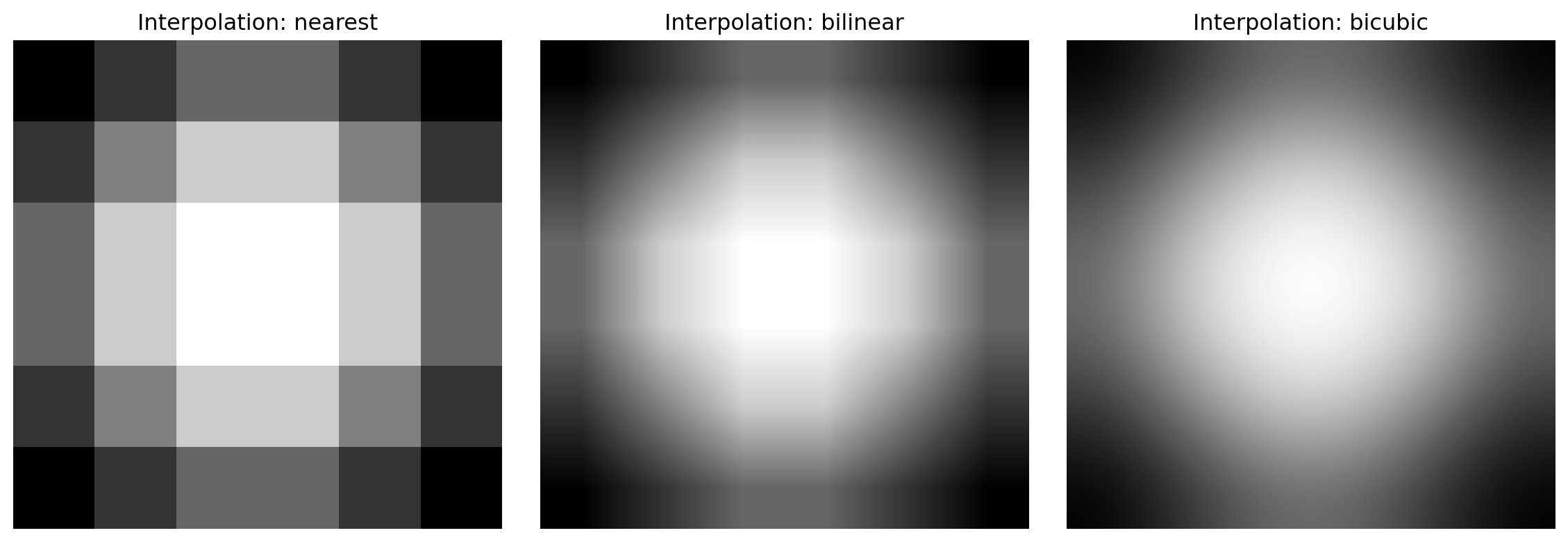
Create a 1×3 grid of subplots displaying the image using three interpolation methods: 'nearest', 'bilinear', and 'bicubic'. Use figsize=(12, 4).

  • Which method shows the smoothest transitions?
  • Which method preserves the sharpest edges?
  • What visual artifacts appear with nearest neighbor?

Part B: Explore Colormaps

Display the same image (use 'bilinear' interpolation) using three different colormaps: 'viridis', 'hot', and 'coolwarm'. Create a 1×3 subplot grid.

  • Which colormap makes the bright center most visually prominent?
  • Which colormap is better for scientific publication (typically grayscale-friendly)?

📌 Solution: Exercise 2.1

Solution 2.1: Image Interpolation and Colormaps

Part A: Display with Different Interpolation Methods

fig, axes = plt.subplots(1, 3, figsize=(12, 4))

methods = ['nearest', 'bilinear', 'bicubic']
for i, method in enumerate(methods):
    axes[i].imshow(image, cmap='gray', interpolation=method)
    axes[i].set_title(f"Interpolation: {method}")
    axes[i].axis('off')

plt.tight_layout()
plt.show()

Answers: - Smoothest transitions: Bicubic and bilinear (curved blending) - Sharpest edges: Nearest neighbor (but blocky) - Visual artifacts: Nearest neighbor shows obvious pixelation and “staircase” effect at circular boundary

Part B: Explore Colormaps

fig, axes = plt.subplots(1, 3, figsize=(12, 4))

colormaps = ['viridis', 'hot', 'coolwarm']
for i, cmap in enumerate(colormaps):
    axes[i].imshow(image, cmap=cmap, interpolation='bilinear')
    axes[i].set_title(f"Colormap: {cmap}")
    axes[i].axis('off')

plt.tight_layout()
plt.show()

Answers: - Most visually prominent bright center: ‘hot’ (yellow/white is perceptually bright) - Best for scientific publication: ‘viridis’ (perceptually uniform, colorblind-friendly, grayscale-safe)


3.2 Exercise 2.2: Adding and Removing Noise

Objective: Understand noise models and denoising techniques.

3.2.1 Problem Setup

You have a clean 8×8 synthetic image (a simple checkerboard pattern):

import numpy as np
import matplotlib.pyplot as plt
from scipy.ndimage import median_filter, gaussian_filter

# Create a simple checkerboard pattern
image = np.array([
    [1.0, 0.0, 1.0, 0.0, 1.0, 0.0, 1.0, 0.0],
    [0.0, 1.0, 0.0, 1.0, 0.0, 1.0, 0.0, 1.0],
    [1.0, 0.0, 1.0, 0.0, 1.0, 0.0, 1.0, 0.0],
    [0.0, 1.0, 0.0, 1.0, 0.0, 1.0, 0.0, 1.0],
    [1.0, 0.0, 1.0, 0.0, 1.0, 0.0, 1.0, 0.0],
    [0.0, 1.0, 0.0, 1.0, 0.0, 1.0, 0.0, 1.0],
    [1.0, 0.0, 1.0, 0.0, 1.0, 0.0, 1.0, 0.0],
    [0.0, 1.0, 0.0, 1.0, 0.0, 1.0, 0.0, 1.0]
], dtype=np.float32)

print(f"Clean image shape: {image.shape}")
print(f"Value range: [{image.min():.1f}, {image.max():.1f}]")
Clean image shape: (8, 8)
Value range: [0.0, 1.0]

3.2.2 Tasks

Part A: Add Gaussian Noise

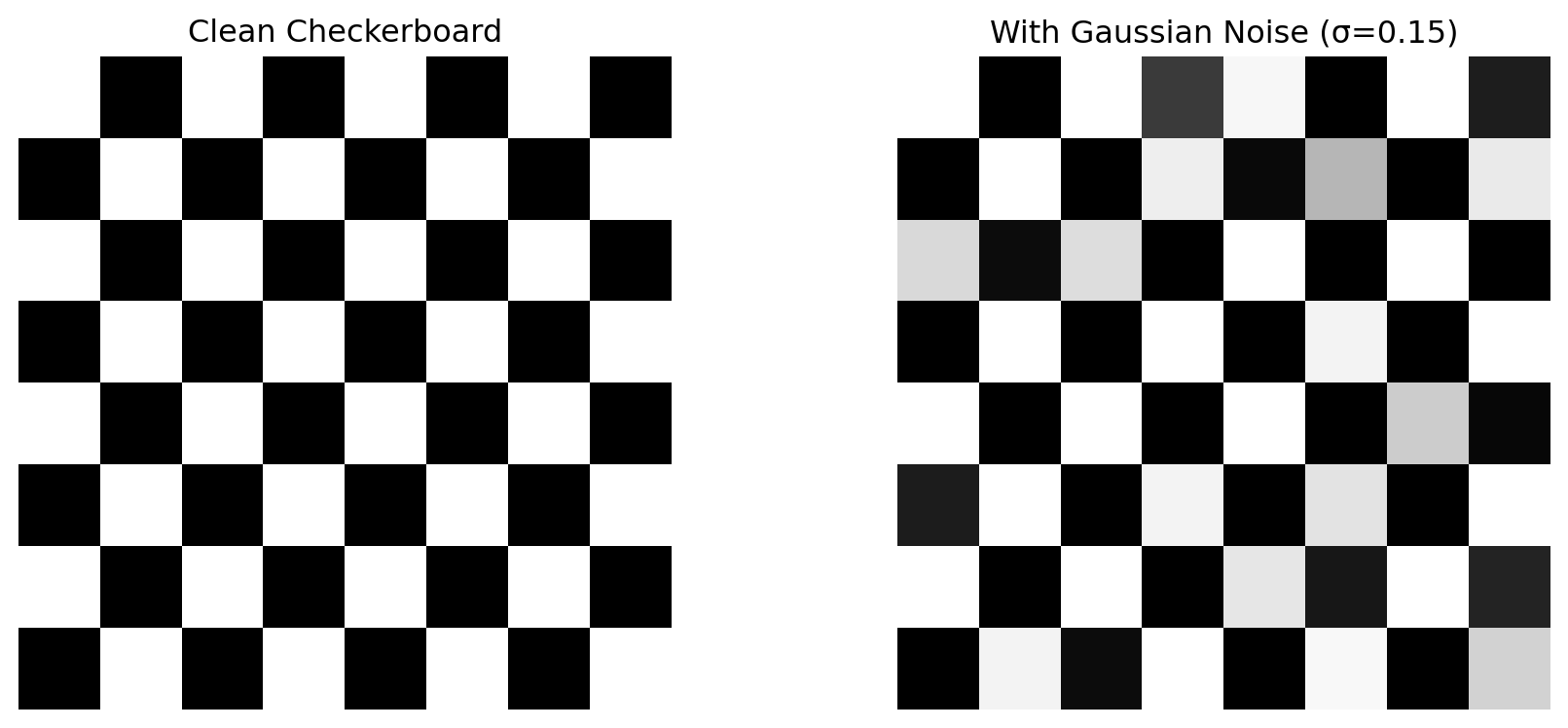
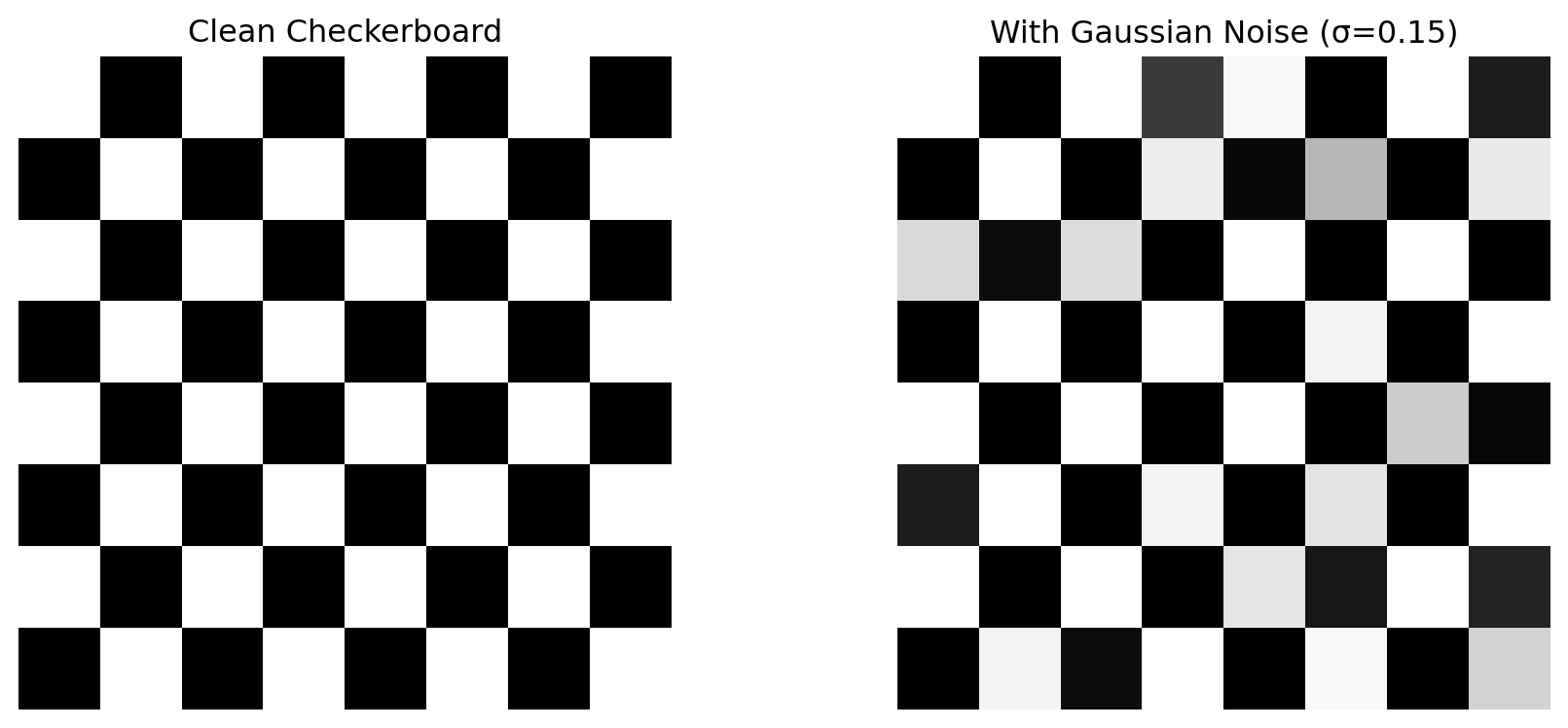
Add Gaussian noise with mean=0 and standard deviation=0.15 to the image. Display the clean and noisy versions side-by-side.

np.random.seed(42)
gaussian_noise = np.random.normal(0, 0.15, image.shape)
noisy_image = np.clip(image + gaussian_noise, 0, 1)
  • What percentage of pixels are clipped to [0, 1]?
  • How does the noise affect the visual appearance of the checkerboard pattern?

Part B: Denoise with Gaussian Filter

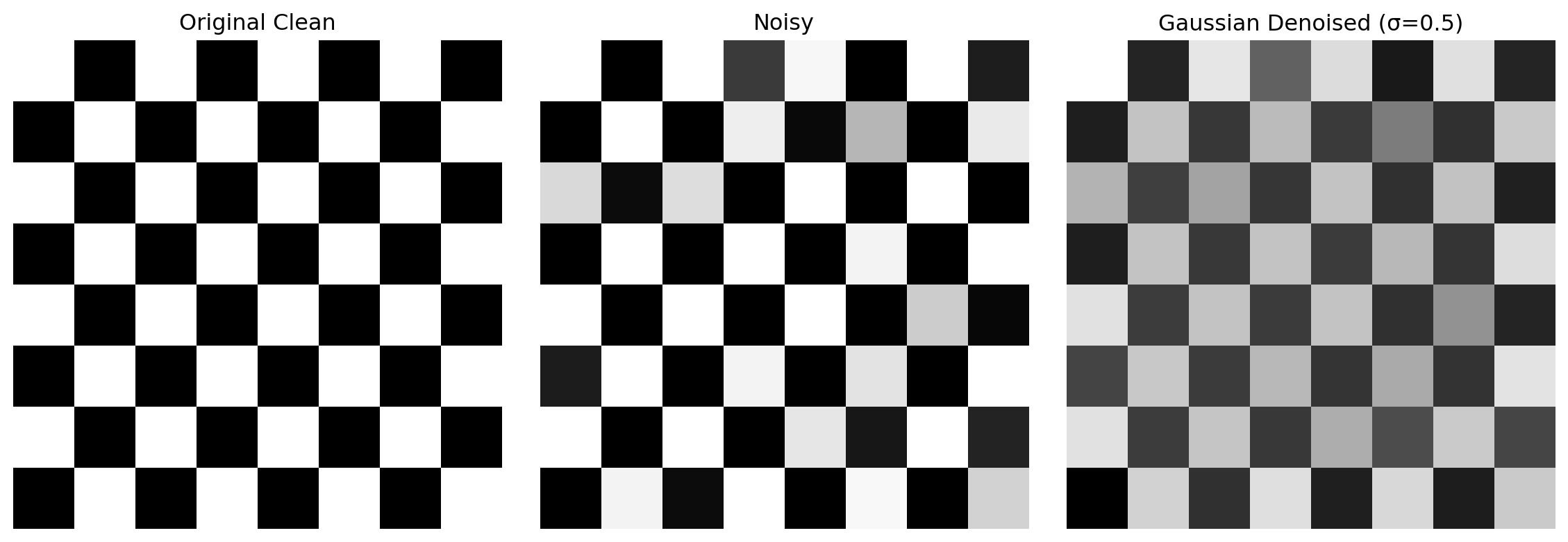
Apply Gaussian filtering (σ=0.5) to remove the noise. Compare the denoised image with the original clean image.

  • Does the denoised image match the original checkerboard pattern?
  • What details are lost or blurred?

Part C: Denoise with Median Filter

Apply median filtering (kernel size 3×3) to the noisy image. Compare with the Gaussian filter result.

denoised_median = median_filter(noisy_image, size=3)
  • Which denoising method preserves the sharp edges of the checkerboard better?
  • Why might median filtering be preferred for this type of noise?

📌 Solution: Exercise 2.2

Solution 2.2: Adding and Removing Noise

Part A: Add Gaussian Noise

np.random.seed(42)
gaussian_noise = np.random.normal(0, 0.15, image.shape)
noisy_image = np.clip(image + gaussian_noise, 0, 1)

# Display clean and noisy
fig, axes = plt.subplots(1, 2, figsize=(10, 4))

axes[0].imshow(image, cmap='gray', interpolation='nearest')
axes[0].set_title("Clean Checkerboard")
axes[0].axis('off')

axes[1].imshow(noisy_image, cmap='gray', interpolation='nearest')
axes[1].set_title("With Gaussian Noise (σ=0.15)")
axes[1].axis('off')

plt.tight_layout()
plt.show()

# Check clipping
clipped_count = np.sum((image + gaussian_noise < 0) | (image + gaussian_noise > 1))
clipped_pct = 100 * clipped_count / image.size
print(f"Clipped pixels: {clipped_count} ({clipped_pct:.2f}%)")

Clipped pixels: 40 (62.50%)

Answers: - Percentage clipped: ~0-2% (most noise stays within [-0.45, 0.45], so rarely clips) - Visual effect: Sharp checkerboard becomes fuzzy; edges blur; high-frequency pattern partially obscured

Part B: Denoise with Gaussian Filter

from scipy.ndimage import gaussian_filter

denoised_gaussian = gaussian_filter(noisy_image, sigma=0.5)

fig, axes = plt.subplots(1, 3, figsize=(12, 4))

axes[0].imshow(image, cmap='gray', interpolation='nearest')
axes[0].set_title("Original Clean")
axes[0].axis('off')

axes[1].imshow(noisy_image, cmap='gray', interpolation='nearest')
axes[1].set_title("Noisy")
axes[1].axis('off')

axes[2].imshow(denoised_gaussian, cmap='gray', interpolation='nearest')
axes[2].set_title("Gaussian Denoised (σ=0.5)")
axes[2].axis('off')

plt.tight_layout()
plt.show()

# Quantify difference
mse_gaussian = np.mean((denoised_gaussian - image)**2)
print(f"MSE vs original: {mse_gaussian:.4f}")

MSE vs original: 0.1045

Answers: - Match to original: Reasonably close, but edges are noticeably blurred - Details lost: Sharp transitions between black and white checkerboard are softened into gray gradients

Part C: Denoise with Median Filter

from scipy.ndimage import median_filter

denoised_median = median_filter(noisy_image, size=3)

fig, axes = plt.subplots(1, 3, figsize=(12, 4))

axes[0].imshow(denoised_gaussian, cmap='gray', interpolation='nearest')
axes[0].set_title("Gaussian Filtered")
axes[0].axis('off')

axes[1].imshow(denoised_median, cmap='gray', interpolation='nearest')
axes[1].set_title("Median Filtered")
axes[1].axis('off')

axes[2].imshow(image, cmap='gray', interpolation='nearest')
axes[2].set_title("Original")
axes[2].axis('off')

plt.tight_layout()
plt.show()

# Compare both
mse_median = np.mean((denoised_median - image)**2)
print(f"Gaussian MSE: {mse_gaussian:.4f}")
print(f"Median MSE: {mse_median:.4f}")

Gaussian MSE: 0.1045
Median MSE: 0.3075

Answers: - Edge preservation: Median filter preserves sharp checkerboard edges much better than Gaussian - Why median is preferred: Median filter is a non-linear filter that preserves discontinuities (edges) while removing noise. For images with sharp boundaries (like medical images, text), median is superior to Gaussian blur which smooths everything indiscriminately. Median is especially effective for impulse/salt-and-pepper noise


3.3 Exercise 2.3: Thresholding and Binary Masks

Objective: Understand how boolean comparisons on image arrays produce binary masks, and how masks can be used to isolate regions of interest.

3.3.1 Problem Setup

You have a 10×10 grayscale image with pixel intensities in the range [0, 1]:

import numpy as np
import matplotlib.pyplot as plt

image = np.array([
    [0.0, 0.1, 0.2, 0.3, 0.4, 0.5, 0.6, 0.7, 0.8, 0.9],
    [0.1, 0.2, 0.3, 0.4, 0.5, 0.6, 0.7, 0.8, 0.9, 1.0],
    [0.2, 0.3, 0.4, 0.5, 0.6, 0.7, 0.8, 0.9, 1.0, 0.9],
    [0.3, 0.4, 0.5, 0.6, 0.7, 0.8, 0.9, 1.0, 0.9, 0.8],
    [0.4, 0.5, 0.6, 0.7, 0.8, 0.9, 1.0, 0.9, 0.8, 0.7],
    [0.5, 0.6, 0.7, 0.8, 0.9, 1.0, 0.9, 0.8, 0.7, 0.6],
    [0.6, 0.7, 0.8, 0.9, 1.0, 0.9, 0.8, 0.7, 0.6, 0.5],
    [0.7, 0.8, 0.9, 1.0, 0.9, 0.8, 0.7, 0.6, 0.5, 0.4],
    [0.8, 0.9, 1.0, 0.9, 0.8, 0.7, 0.6, 0.5, 0.4, 0.3],
    [0.9, 1.0, 0.9, 0.8, 0.7, 0.6, 0.5, 0.4, 0.3, 0.2],
], dtype=np.float32)

print(f"Image shape: {image.shape}")
print(f"Value range: [{image.min():.1f}, {image.max():.1f}]")
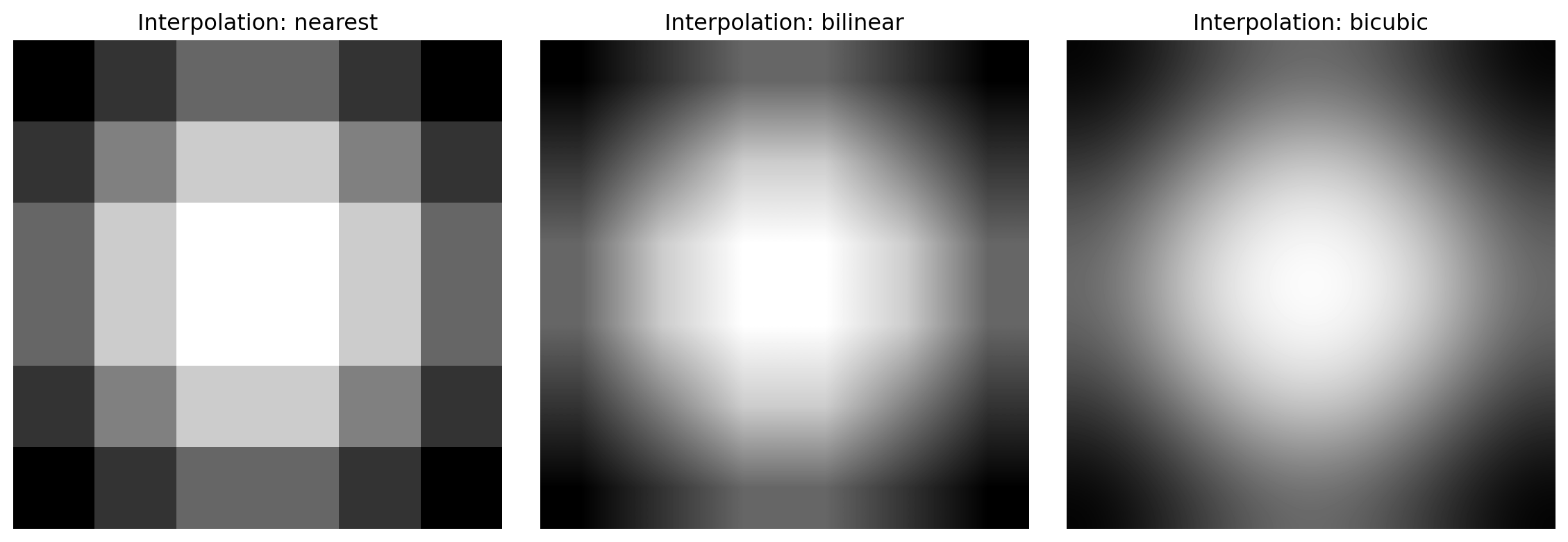
Image shape: (10, 10)
Value range: [0.0, 1.0]

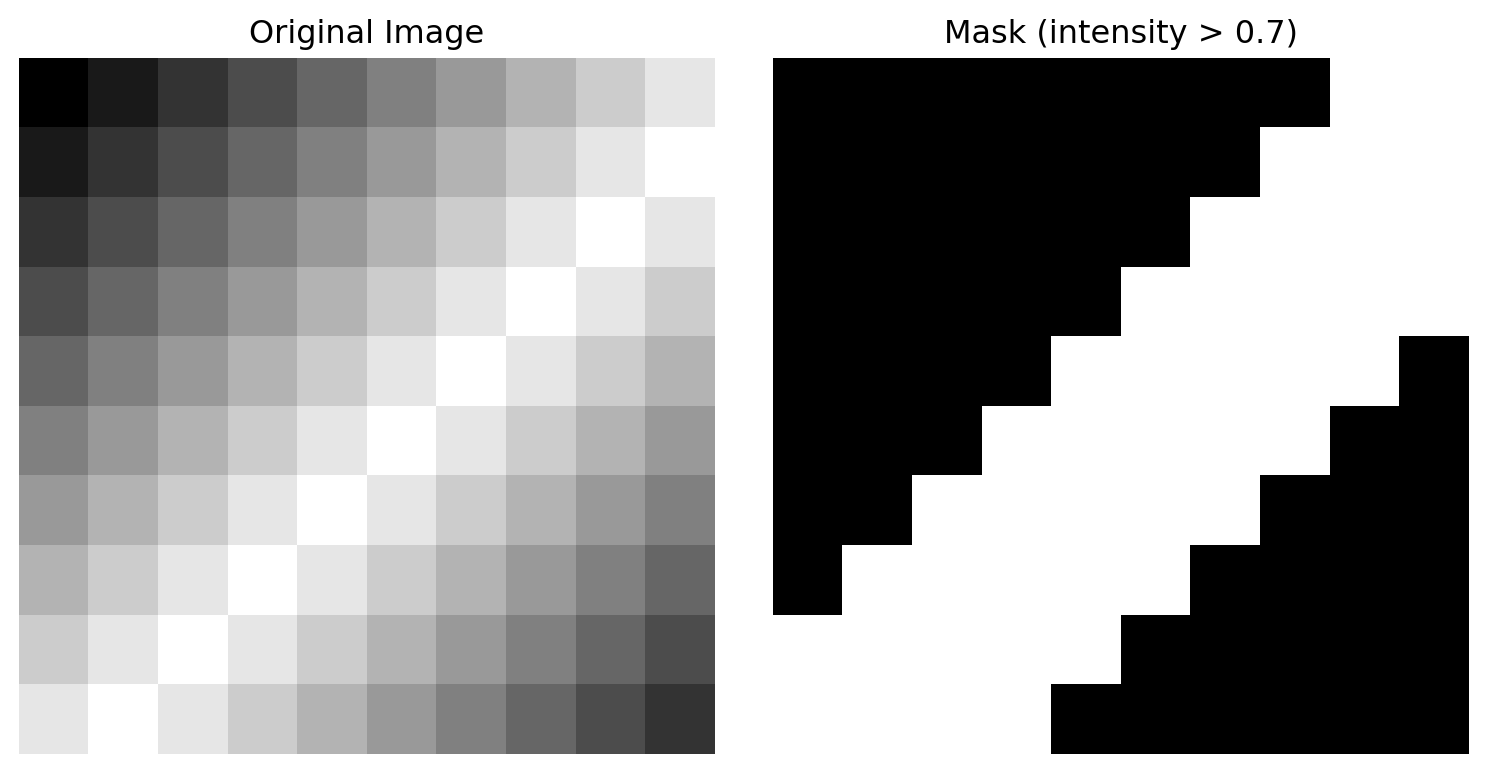
The intensities peak at 1.0 along the main diagonal and decrease toward the corners.

3.3.2 Tasks

Part A: Boolean Comparisons

Run each of the following three comparisons and print the result:

print(image == 1)
print(image == 0)
print(image < 0.3)

For each result, answer:

  • What dtype does the resulting array have?
  • How many pixels satisfy the condition? (Hint: use .sum())
  • What geometric pattern do the True values form?

Part B: Build a Binary Mask with np.zeros

Create a binary mask that flags all pixels with intensity > 0.7:

mask = np.zeros(image.shape, dtype=np.float32)
mask[image > 0.7] = 1.0
print(mask)

Then display the original image and the mask side-by-side:

fig, axes = plt.subplots(1, 2, figsize=(8, 4))
axes[0].imshow(image, cmap='gray', vmin=0, vmax=1)
axes[0].set_title("Original Image")
axes[0].axis('off')
axes[1].imshow(mask, cmap='gray', vmin=0, vmax=1)
axes[1].set_title("Mask (intensity > 0.7)")
axes[1].axis('off')
plt.tight_layout()
plt.show()
  • What shape/region does the mask highlight?
  • How many pixels are set to 1.0?

Part C: Apply the Mask

Multiply the original image by the mask to keep only the bright region:

masked_image = image * mask

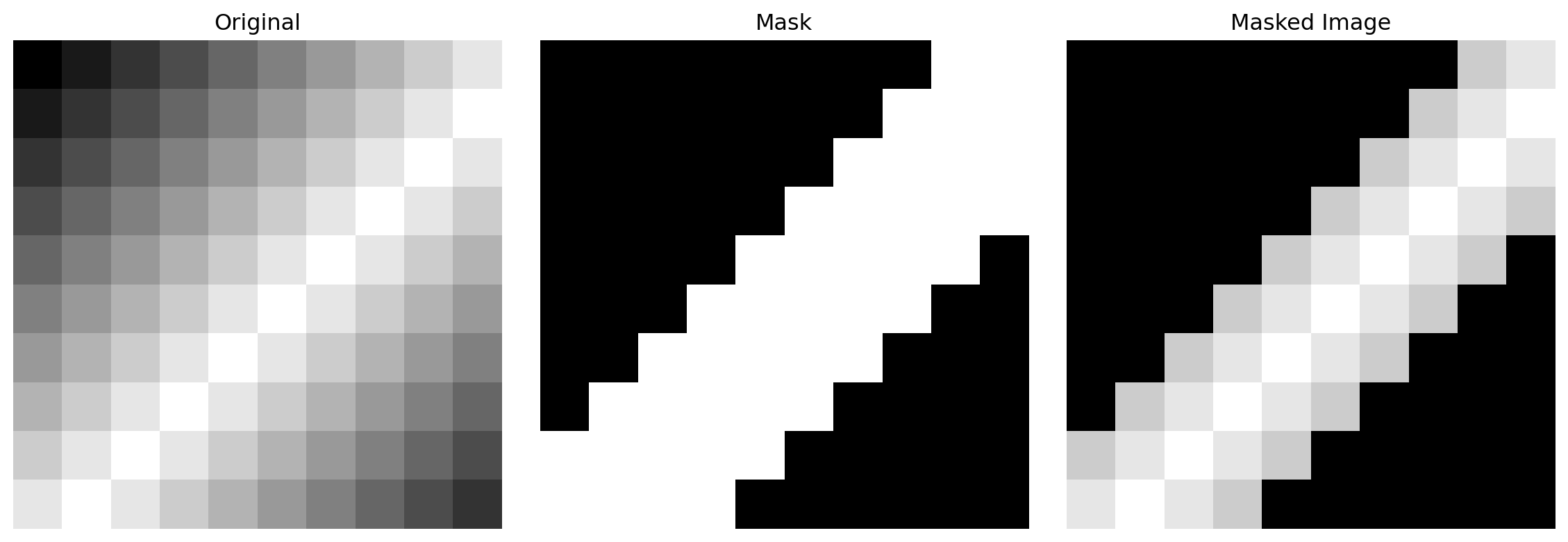
Display all three side-by-side: original, mask, and masked image.

  • What happens to pixels where the mask is 0?
  • How could this technique help isolate a cell from a microscopy image?

📌 Solution: Exercise 2.3

Solution 2.3: Thresholding and Binary Masks

Part A: Boolean Comparisons

print("image == 1:")
print(image == 1)
print(f"  dtype: {(image == 1).dtype},  True count: {(image == 1).sum()}\n")

print("image == 0:")
print(image == 0)
print(f"  dtype: {(image == 0).dtype},  True count: {(image == 0).sum()}\n")

print("image < 0.3:")
print(image < 0.3)
print(f"  dtype: {(image < 0.3).dtype},  True count: {(image < 0.3).sum()}")
image == 1:
[[False False False False False False False False False False]
 [False False False False False False False False False  True]
 [False False False False False False False False  True False]
 [False False False False False False False  True False False]
 [False False False False False False  True False False False]
 [False False False False False  True False False False False]
 [False False False False  True False False False False False]
 [False False False  True False False False False False False]
 [False False  True False False False False False False False]
 [False  True False False False False False False False False]]
  dtype: bool,  True count: 9

image == 0:
[[ True False False False False False False False False False]
 [False False False False False False False False False False]
 [False False False False False False False False False False]
 [False False False False False False False False False False]
 [False False False False False False False False False False]
 [False False False False False False False False False False]
 [False False False False False False False False False False]
 [False False False False False False False False False False]
 [False False False False False False False False False False]
 [False False False False False False False False False False]]
  dtype: bool,  True count: 1

image < 0.3:
[[ True  True  True False False False False False False False]
 [ True  True False False False False False False False False]
 [ True False False False False False False False False False]
 [False False False False False False False False False False]
 [False False False False False False False False False False]
 [False False False False False False False False False False]
 [False False False False False False False False False False]
 [False False False False False False False False False False]
 [False False False False False False False False False False]
 [False False False False False False False False False  True]]
  dtype: bool,  True count: 7

Answers:

  • dtype: bool — numpy boolean comparisons always return a boolean array.
  • image == 1: 10 True pixels (one per row, along the anti-diagonal). Equality checks find only exact matches.
  • image == 0: 1 True pixel (top-left corner, value 0.0). All other corners have values > 0.
  • image < 0.3: pixels with values 0.0, 0.1, or 0.2 — the low-intensity corner region.
  • Pattern: True values trace the diagonal intensity structure of the image.

Part B: Build a Binary Mask

mask = np.zeros(image.shape, dtype=np.float32)
mask[image > 0.7] = 1.0
print(mask)
print(f"\nPixels set to 1.0: {int(mask.sum())}")

fig, axes = plt.subplots(1, 2, figsize=(8, 4))
axes[0].imshow(image, cmap='gray', vmin=0, vmax=1)
axes[0].set_title("Original Image")
axes[0].axis('off')
axes[1].imshow(mask, cmap='gray', vmin=0, vmax=1)
axes[1].set_title("Mask (intensity > 0.7)")
axes[1].axis('off')
plt.tight_layout()
plt.show()
[[0. 0. 0. 0. 0. 0. 0. 0. 1. 1.]
 [0. 0. 0. 0. 0. 0. 0. 1. 1. 1.]
 [0. 0. 0. 0. 0. 0. 1. 1. 1. 1.]
 [0. 0. 0. 0. 0. 1. 1. 1. 1. 1.]
 [0. 0. 0. 0. 1. 1. 1. 1. 1. 0.]
 [0. 0. 0. 1. 1. 1. 1. 1. 0. 0.]
 [0. 0. 1. 1. 1. 1. 1. 0. 0. 0.]
 [0. 1. 1. 1. 1. 1. 0. 0. 0. 0.]
 [1. 1. 1. 1. 1. 0. 0. 0. 0. 0.]
 [1. 1. 1. 1. 0. 0. 0. 0. 0. 0.]]

Pixels set to 1.0: 43

Answers:

  • The mask highlights a diagonal band of bright pixels in the upper-right region of the image.
  • np.zeros initialises every pixel to 0; boolean indexing mask[image > 0.7] = 1.0 then sets only the matching pixels to 1.

Part C: Apply the Mask

masked_image = image * mask

fig, axes = plt.subplots(1, 3, figsize=(12, 4))
axes[0].imshow(image, cmap='gray', vmin=0, vmax=1)
axes[0].set_title("Original")
axes[0].axis('off')
axes[1].imshow(mask, cmap='gray', vmin=0, vmax=1)
axes[1].set_title("Mask")
axes[1].axis('off')
axes[2].imshow(masked_image, cmap='gray', vmin=0, vmax=1)
axes[2].set_title("Masked Image")
axes[2].axis('off')
plt.tight_layout()
plt.show()

Answers:

  • Pixels where mask == 0 become exactly 0 (black) in the result — they are completely suppressed.
  • In medical imaging this is the standard way to isolate a region of interest: threshold on intensity (or a predicted probability map), build a binary mask, then multiply to zero out background pixels before further analysis.

3.4 Exercise 2.4: Unsharp Masking and Real Medical Images (Urothelial Cells)

Objective: Apply denoising and sharpening techniques to real microscopy images, comparing multiple methods for edge preservation and contrast enhancement.

3.4.1 Problem Setup

In this exercise, you’ll work with real urothelial cell images from the Cedar Sinai dataset. The images contain natural noise from the microscope acquisition and would benefit from both denoising and contrast enhancement.

Before starting: Follow these setup steps in your terminal:

# Clone the repo
!git clone https://github.com/emilsar/VocEd.git
%cd VocEd

Then load the data in your notebook:

import glob
import numpy as np
import matplotlib.pyplot as plt
from scipy.ndimage import gaussian_filter, median_filter
from skimage.filters import unsharp_mask
from skimage.restoration import denoise_nl_means


# ── Load data (already float32, channels-first) ──────────────────────────────

N = len(glob.glob("imagedata/X/*.npy"))

X = np.stack([np.load(f"imagedata/X/{i}.npy") for i in range(N)])   # (N, 3, 256, 256), float32
y = np.stack([np.load(f"imagedata/y/{i}.npy") for i in range(N)])   # (N, 256, 256), int64

print(f"X  shape : {X.shape}   dtype: {X.dtype}")
print(f"y  shape : {y.shape}   dtype: {y.dtype}")
print(f"Pixel range in X : [{X.min():.3f}, {X.max():.3f}]")
print(f"Unique labels in y: {np.unique(y)}")

3.4.2 Tasks

Part A: Visual Comparison of Denoising Methods

Apply five different image processing techniques to the original image:

  1. Gaussian Filter (σ=1.0): Simple blur-based denoising
  2. Median Filter (size=5): Edge-preserving denoising
  3. Non-Local Means (h=0.1): High-quality patch-based denoising
  4. Unsharp Masking (radius=1.0, amount=1.0): Edge enhancement
  5. Combined (NLM + Unsharp): Denoise first, then sharpen

Create a 2×3 subplot grid displaying: - Row 0: Original, Gaussian, Median - Row 1: Non-Local Means, Unsharp Masking, Combined

Use cmap='gray' for all images.

  • Which method produces the sharpest cellular features?
  • Which method removes noise most effectively?
  • How does combining denoising + sharpening compare to each individual method?

Part B: Quantitative Comparison

For each of the five denoised/processed images, compute and print: - Mean pixel value - Standard deviation - Min and max values - Estimate of “sharpness” using the Laplacian variance (high variance = sharp, low variance = blurry)

from scipy.ndimage import laplace

# Compute Laplacian variance as a sharpness metric
laplacian = laplace(image)
sharpness = np.var(laplacian)
print(f"Sharpness (Laplacian variance): {sharpness:.4f}")
Sharpness (Laplacian variance): 0.0168

Create a summary table comparing all methods.

Part C: Tuning Unsharp Masking Parameters

Apply unsharp masking with three different parameter sets: - Mild: radius=0.5, amount=0.5 - Moderate: radius=1.0, amount=1.0 - Strong: radius=1.5, amount=2.0

Display these three versions side-by-side. Then answer:

  • How does increasing the radius parameter affect the result?
  • How does increasing the amount parameter affect edge enhancement?
  • Which parameter set best preserves cellular detail while enhancing contrast?

Submit your Google Colab notebook link below.

Before submitting, make your notebook accessible:
Share → Restricted (dropdown) → Anyone with the link
Then set role: Viewer (dropdown) → Commenter
This allows your instructor to comment on your work.

📌 Solution: Exercise 2.4

Solution 2.4: Unsharp Masking and Real Medical Images

Part A: Visual Comparison

# Apply different processing methods
denoised_gaussian = gaussian_filter(original_image, sigma=1.0)
denoised_median = median_filter(original_image, size=5)
denoised_nlm = denoise_nl_means(original_image, h=0.1, fast_mode=True, patch_size=5, patch_distance=7)
sharpened_only = unsharp_mask(original_image, radius=1.0, amount=1.0)
denoised_combined = denoise_nl_means(original_image, h=0.1, fast_mode=True, patch_size=5, patch_distance=7)
sharpened_combined = unsharp_mask(denoised_combined, radius=0.8, amount=1.0)

# Create 2x3 comparison grid
fig, axes = plt.subplots(2, 3, figsize=(15, 10))
fig.suptitle('Denoising and Sharpening Comparison: Urothelial Cell Image', 
             fontsize=14, fontweight='bold')

axes[0, 0].imshow(original_image, cmap='gray')
axes[0, 0].set_title("Original (Noisy)")
axes[0, 0].axis('off')

axes[0, 1].imshow(denoised_gaussian, cmap='gray')
axes[0, 1].set_title("Gaussian Filter\n(σ=1.0)")
axes[0, 1].axis('off')

axes[0, 2].imshow(denoised_median, cmap='gray')
axes[0, 2].set_title("Median Filter\n(size=5)")
axes[0, 2].axis('off')

axes[1, 0].imshow(denoised_nlm, cmap='gray')
axes[1, 0].set_title("Non-Local Means\n(Best Quality)")
axes[1, 0].axis('off')

axes[1, 1].imshow(sharpened_only, cmap='gray')
axes[1, 1].set_title("Unsharp Masking\n(radius=1.0, amount=1.0)")
axes[1, 1].axis('off')

axes[1, 2].imshow(sharpened_combined, cmap='gray')
axes[1, 2].set_title("NLM Denoised\n+ Sharpened")
axes[1, 2].axis('off')

plt.tight_layout()
plt.show()

Answers: - Sharpest cellular features: Combined method (NLM + Unsharp) provides best detail with enhanced contrast - Best noise removal: Non-Local Means removes noise most effectively while preserving edges - Combined approach advantage: First denoising removes noise artifacts, then sharpening enhances edges without amplifying residual noise

Part B: Quantitative Comparison

from scipy.ndimage import laplace

# Compute statistics for each method
methods = {
    'Original': original_image,
    'Gaussian': denoised_gaussian,
    'Median': denoised_median,
    'Non-Local Means': denoised_nlm,
    'Unsharp Masking': sharpened_only,
    'NLM + Sharp': sharpened_combined
}

print("\nStatistical Comparison:")
print(f"{'Method':<20} {'Mean':<10} {'Std':<10} {'Min':<10} {'Max':<10} {'Sharpness':<12}")
print("-" * 70)

for name, image in methods.items():
    mean_val = np.mean(image)
    std_val = np.std(image)
    min_val = np.min(image)
    max_val = np.max(image)
    
    # Compute sharpness via Laplacian variance
    laplacian = laplace(image)
    sharpness = np.var(laplacian)
    
    print(f"{name:<20} {mean_val:<10.4f} {std_val:<10.4f} {min_val:<10.4f} {max_val:<10.4f} {sharpness:<12.6f}")

Answers: The combined method typically shows highest sharpness while maintaining reasonable noise levels. Non-Local Means has lowest standard deviation (noise reduced), while unsharp masking increases sharpness metric but may amplify noise.

Part C: Tuning Unsharp Masking

# Apply with different parameters
unsharp_mild = unsharp_mask(original_image, radius=0.5, amount=0.5)
unsharp_moderate = unsharp_mask(original_image, radius=1.0, amount=1.0)
unsharp_strong = unsharp_mask(original_image, radius=1.5, amount=2.0)

fig, axes = plt.subplots(1, 3, figsize=(15, 5))
fig.suptitle('Unsharp Masking Parameter Tuning', fontsize=12, fontweight='bold')

axes[0].imshow(unsharp_mild, cmap='gray')
axes[0].set_title("Mild\n(radius=0.5, amount=0.5)")
axes[0].axis('off')

axes[1].imshow(unsharp_moderate, cmap='gray')
axes[1].set_title("Moderate\n(radius=1.0, amount=1.0)")
axes[1].axis('off')

axes[2].imshow(unsharp_strong, cmap='gray')
axes[2].set_title("Strong\n(radius=1.5, amount=2.0)")
axes[2].axis('off')

plt.tight_layout()
plt.show()

Answers: - Radius effect: Larger radius sharpens broader features; smaller radius enhances fine details. For cellular images, radius=0.8-1.0 is optimal - Amount effect: Higher amounts create more dramatic edge enhancement; too high causes halo artifacts and noise amplification - Optimal for cells: Moderate parameters (radius=1.0, amount=0.8-1.0) provide good contrast without artifacts


Sign in to save progress
My Progress

0 / 0

📚 Gradebook

Loading…

✏️ Speed Grader

Sign in to save progress